
March 1, 2019 NHTSA CAMPAIGN NUMBER: 19V148000
Adaptive Cruse Control May Fail To Deactivate
The driver’s inability to deactivate the ACC can increase the risk of crash.
NHTSA Campaign Number: 19V148
Manufacturer Chrysler (FCA US LLC)
Components FORWARD COLLISION AVOIDANCE, SERVICE BRAKES, HYDRAULIC
Potential Number of Units Affected 19,114
Summary
FCA US LLC (Alfa Romeo) is recalling certain 2018-2019 Alfa Romeo Stelvio and 2017-2019 Giulia vehicles. The Brake System Module (BSM) software may prevent the driver from disabling the Adaptive Cruise Control (ACC) after the traction control system detects a specific wheel slip.
Remedy
Alfa Romeo has notified owners, and dealers will update the BSM software, free of charge. The recall began March 25, 2019. Owners may contact Alfa Romeo customer service 1-800-853-1403. The Alfa Romeo number for this recall is V27.
Notes
Owners may also contact the National Highway Traffic Safety Administration Vehicle Safety Hotline at 1-888-327-4236 (TTY 1-800-424-9153), or go to www.safercar.gov.
Check if your Vehicle has a Recall
Revised June 2019
Dealer Service Instructions for:
Safety Recall V27 / NHTSA 19V-148
Adaptive Cruise Control
NOTE: Procedure F reinstated and inspect only LOP reinstated.
Remedy Available
| 2017-2019 | (GA) | Alfa Romeo Giulia |
| 2018-2019 | (GU) | Alfa Romeo Stelvio |
NOTE: This recall applies only to the above vehicles with Adaptive Cruise Control (sales code NH3).
NOTE: Some vehicles above may have been identified as not involved in this recall and therefore have been excluded from this recall.
Subject
The Adaptive Cruise Control (ACC) on about 19,100 of the above vehicles may not allow cancelation of the ACC in specific driving conditions. In certain circumstances while ACC is active and the traction control detects a specific wheel slip, it is possible for a positive torque request to be locked by the Brake System Module (BSM) which may result in unexpected acceleration. If the driver does not shift to neutral or apply firm, sustained brake-pedal application to deactivate the ACC, this condition can cause a vehicle crash without prior warning
Repair
Update the Antilock Brake System (ABS) module / BSM software.
NOTE: Some vehicles may require up to three separate software flashes.
NOTE: The ABS module icon within the wiTECH topology screen may NOT display a lightning bolt. Absence of lightning bolt does NOT indicate there is no flash available. Flash may still be available even in the absence of a lightning bolt. Pages 4 and 5 of Service Procedure MUST be followed to inspect hardware/software level and determine appropriate flash procedure.
Parts Information
No parts are required to perform this service procedure.
Parts Return
No parts return required for this campaign.
Special Tools
The following special tools are required to perform this repair:
| ➢ NPN | wiTECH micro pod II |
| ➢ NPN | Laptop Computer |
| ➢ NPN | wiTECH Software |
Service Procedure
NOTE: Before beginning, check if the vehicle is involved in any previously issued open safety campaigns and complete those before continuing.
CAUTION: If this is an unsold vehicle, before beginning the service procedure, deactivate the vehicle shipping/transportation mode.
NOTE: The wiTECH scan tool must be used to perform this recall. If the reprogramming flash for the Antilock Brake System (ABS) module / BSM is aborted or interrupted, repeat the procedure.
- Open the hood and install a battery charger. Verify that the charging rate provides 13.0 to 13.5 volts. Do not allow the charger to time out during the flash process. Set the battery charger timer (if so equipped) to continuous charge.
NOTE: Use an accurate stand-alone voltmeter. The battery charger volt meter may not be sufficiently accurate. Voltages outside of the specified range will cause an unsuccessful flash. If voltage reading is too high, apply an electrical load by activating the park or headlamps and/or HVAC blower motor to lower the voltage.
- Connect the wiTECH micro pod II to the vehicle data link connector.
- Place the ignition in the “RUN” position.
- Open the wiTECH 2.0 website.
- Enter your “User id” and “Password” and your “Dealer Code”, then select “Sign In” at the bottom of the screen. Click “Accept”.
- From the “Vehicle Selection” screen, select the vehicle to be updated.
NOTE: Before updating the ABS/BSM software, create a scan report and save a copy for future reference.
- Create and save a Vehicle Scan Report (VSR) before proceeding.
a. From the left column in the analysis section, select “Reports”.
b. On the reports page, select “Scan Report”.
c. Select “ECU Summary” from the dropdown menu on the right.
d. Select “Printer Friendly” then save file type as “PDF”. Name the file with the last eight digits of the vehicle VIN.
- From the “Action Items” screen, select the “Topology” tab.
- From the “Topology” tab, select the “ABS” module icon.
NOTE: ABS module icon may NOT display a lightning bolt. Absence of a lightning bolt does NOT indicate there is no flash available.
- From the ABS “Flash” tab, record the “Current Part Number” (Figure 1) for the software currently installed in the Electronic Control Unit (ECU), then proceed to the table in (Figure 2) to determine which flash Procedure A, B, C, D, E is the appropriate starting point for the specific hardware and software combination currently installed in the vehicle.
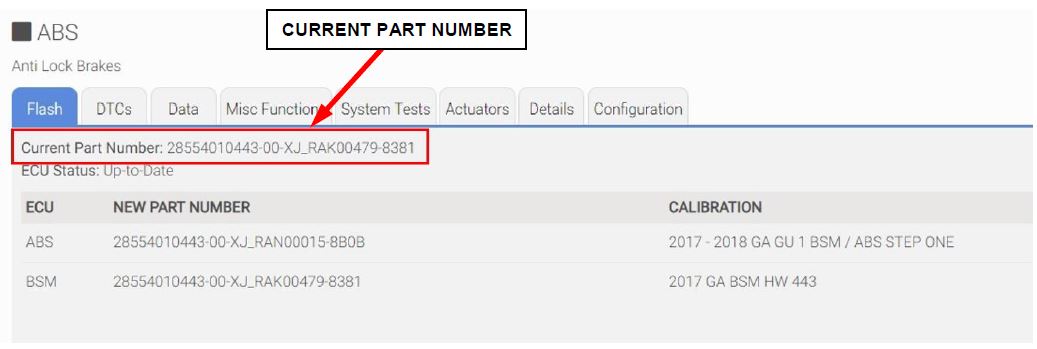
Figure 1 – Example of ECU “Current Part Number”
NOTE: Use the chart below in order to determine the appropriate flash service procedure based on the hardware (HW) and software (SW) level currently installed in the vehicle. Then proceed to the appropriate Service Procedure A, B, C, D, E and complete all relevant steps detailed in that service procedure.
| HW number | HW version | SW number | SW version | To do |
| 28554010353 or 28554010443 or 28554010535 | 00 | XJ_RAL00164 | 83C1 | Procedure A |
| XJ_RAK00479 | 8383 | |||
| XJ_RAK00496 | 8382 | |||
| XJ_RAK00479 | 8382 | |||
| XJ_RAK00479 | 8381 | |||
| XJ_RAK00478 | 8381 | |||
| XJ_RAJ00430 | 8343 | |||
| XJ_RAJ00428 | 8343 | |||
| XJ_RAJ00370 | 8342 | |||
| XJ_RAJ00314 | 8342 | |||
| XJ_RAL00165 | 83C1 | |||
| XJ_RAJ00480 | 8343 | |||
| XJ_RAN00010 | 8401 | Procedure B | ||
| 28554010353 or 28554010443 or 28554010535 | 00 | XJ_RAN00010 | 8402 | Procedure C |
| XJ_RAN00010 | 8403 | |||
| 28554010535 | 00 | XJ_RAP00046 | 8441 | Procedure D |
| 28554057115 | 00 | XJ_RAT00007 | 84C1 | Procedure E |
| 00 | XJ_RAS00023 | 8481 | ||
| 00 | XJ_RAS00042 | 8482 | ||
| 28554010353 or 28554010443 or 28554010535 | 00 | XJ_RAX00007 | 8541 | Procedure F |
| 00 | XJ_RAX00007 | 8542 | ||
| 00 | XJ_RAX00007 | 8543 | ||
| 28554010535 | 00 | XJ_RAW00010 | 8502 | |
| 28554057115 | 00 | XJ_RAY00006 | 8581 |
Figure 2 – Currently Installed Software Level Chart
Procedure A
NOTE: To update the ABS / BSM software to proper level, three separate software flashes are required. Complete all relevant procedures steps. The procedure must be followed in the same sequence as listed below (Figure 3):
- Step 1 – First flash ABS / BSM – “STEP ONE”
- Step 2 – “Restore Vehicle Configuration”
- Step 3 – Second flash ABS / BSM – “STEP TWO”
- Step 4 – Third flash ABS / BSM – “FINAL STEP”
- Step 5 – Post reprogramming calibration – “Learn Procedure”
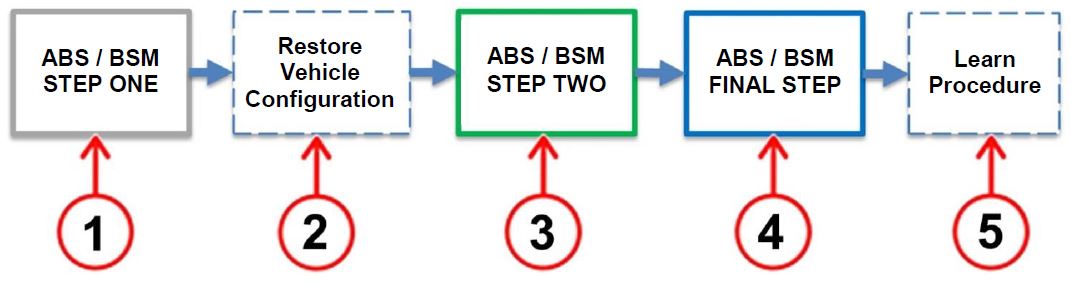
Figure 3 – ABS/BSM Software Reprogramming Sequence
Step 1 – First flash ABS / BSM – “STEP ONE”
- From the ABS flash tab, select the ABS flash “STEP ONE” and proceed with the first reprogramming procedure (Figure 4).
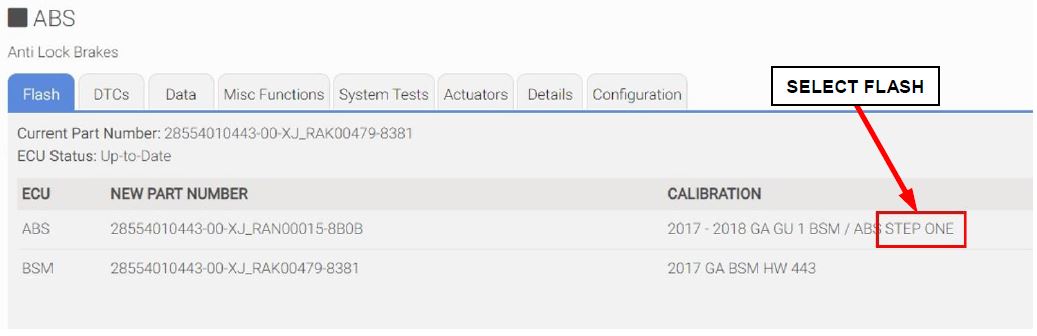
Figure 4 – First Flash ABS / BSM “STEP ONE”
- Read the flash special instructions page. Select “OK” to continue.
- From the flash ECU agreement page, agree to terms by checking the box.
- Select “Flash ECU” and then follow the wiTECH screen instructions to complete the flash.
NOTE: Read all the instructions and warning messages displayed during reprogramming; do not continue without performing all of the relevant procedures when prompted.
NOTE: If the reprogramming process is interrupted/aborted, it must be restarted.
- Click “View DTCs”, select “Clear All DTCs”, click “Continue” and then click “Close”.
- The following table shows the software (SW) codes of the ABS / BSM, before and after the first reprogramming flash (Figure 5).
| Before ABS / BSM programming | After ABS / BSM programming | ||
| SW number | SW version | SW number | SW version |
| XJ_RAL00164 | 83C1 | XJ_RAN00015 | 8B0B |
| XJ_RAK00479 | 8383 | ||
| XJ_RAK00496 | 8382 | ||
| XJ_RAK00479 | 8382 | ||
| XJ_RAK00479 | 8381 | ||
| XJ_RAK00478 | 8381 | ||
| XJ_RAJ00430 | 8343 | ||
| XJ_RAJ00428 | 8343 | ||
| XJ_RAJ00370 | 8342 | ||
| XJ_RAJ00314 | 8342 | ||
| XJ_RAL00165 | 83C1 | ||
| XJ_RAJ00480 | 8343 | ||
Figure 5 – ABS / BSM Software Before and After Step 1
Step 2 – Restore Vehicle Configuration
Obtain the key code pin number for use later during vehicle configuration:
- Sign into DealerConnect.
- Select the “Service” tab.
- Within the “Repair Information” section select “Key Code”.
- Enter the following:
- Vehicle VIN.
- Reason Code (Module Replacement).
- Password.
- Check the box next to Dealer Policy acknowledgement.
- Click “Search” then record the key code pin number.
- Under the “Activities” heading in the left column of the wiTECH screen, select “Vehicle Preparations”.
- Within “Vehicle Preparations”, select “Restore Vehicle Configuration” then follow the screen prompts.
NOTE: If not successful, the Restore Vehicle Configuration procedure may be repeated until successful.
- From the “Topology” screen, select the “ABS” module icon.
Step 3 – Second flash ABS / BSM – “STEP TWO”
- From the ABS “Flash” tab, select the ABS flash “STEP TWO” and proceed with the second reprogramming procedure (Figure 6).
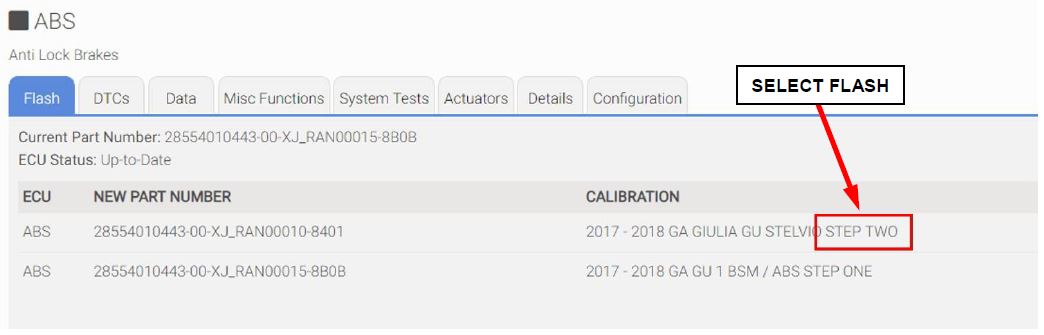
Figure 6 – Second Flash ABS / BSM “STEP TWO”
- Read the flash special instructions page. Select “OK” to continue.
- From the flash ECU agreement page, agree to terms by checking the box.
- Select “Flash ECU” and then follow the wiTECH screen instructions to complete the flash.
NOTE: Read all the instructions and warning messages displayed during reprogramming; do not continue without performing all of the relevant procedures when prompted.
NOTE: If the reprogramming process is interrupted/aborted, it must be restarted.
- Click “View DTCs”, select “Clear All DTCs”, click “Continue” and then click “Close”.
- The following table shows the software (SW) codes of the ABS / BSM, before and after the second reprogramming (Figure 7).
| Before ABS / BSM programming | After ABS / BSM programming | ||
| SW number | SW version | SW number | SW version |
| XJ_RAN00015 | 8B0B | XJ_RAN00010 | 8401 |
Figure 7 – ABS / BSM Software Before and After Step Two
Step 4 – Third flash ABS / BSM – “FINAL STEP”
- From the ABS flash tab, select the ABS flash “FINAL STEP” and proceed with the third reprogramming procedure (Figure 8).
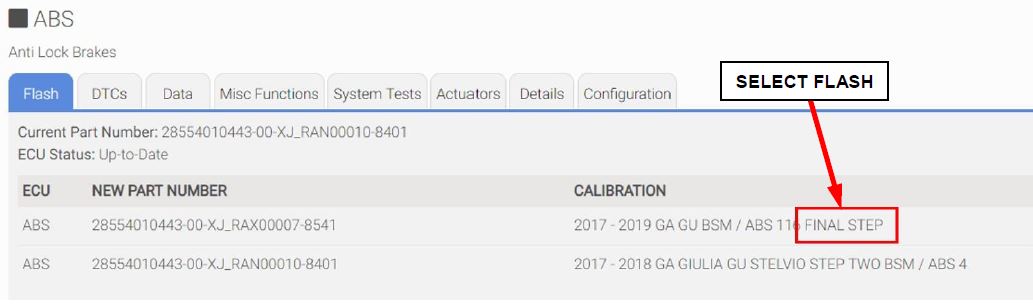
Figure 8 – Third Flash ABS / BSM “FINAL STEP”
- Read the flash special instructions page. Select “OK” to continue.
- From the flash ECU agreement page, agree to terms by checking the box.
- Select “Flash ECU” and then follow the wiTECH screen instructions to complete the flash.
NOTE: Read all the instructions and warning messages displayed during reprogramming; do not continue without performing all of the relevant procedures when prompted.
NOTE: If the reprogramming process is interrupted/aborted, it must be restarted.
- Click “View DTCs”, select “Clear All DTCs”, click “Continue” and then click “Close”.
- The following table shows the software (SW) codes of the ABS / BSM, before and after the third reprogramming (Figure 9).
| Before ABS / BSM programming | After ABS / BSM programming | ||
| SW number | SW version | SW number | SW version |
| XJ_RAN00010 | 8401 | XJ_RAX00007 | 8541 |
Figure 9 – ABS / BSM Software Before and After Step Three – Final Step
NOTE: The ABS/BSM Brake Pedal Feel software flash may be bypassed. Proceed to the next steps for Post-Reprogramming Calibration Procedure.
The brake pedal feel software flash may be performed on all (GU) Stelvio vehicles and will modify brake pedal feel. However, this flash is NOT required for Procedure A of this recall and labor time to perform this flash will NOT be reimbursed (Figure 10):
- “2018 – 2019 GU 2.9L BSM/ABS BRAKE PEDAL FEEL”
- “2018 – 2019 GU 2.0L GME BSM/ABS BRAKE PEDAL FEEL”
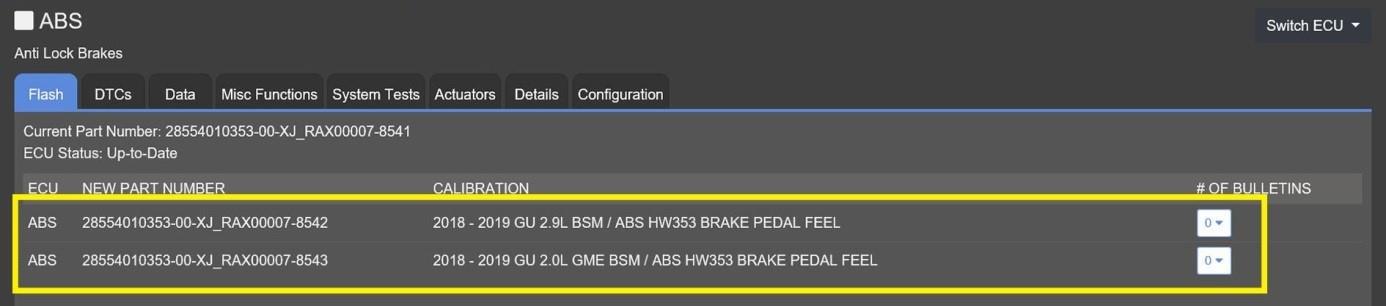
Figure 10 – ABS/BSM Brake Pedal Feel Software Flash Files
Step 5 – Post-Reprogramming Calibration Procedure
NOTE: The post-reprogramming calibration procedure must be carried out with the vehicle on a flat ground and no people on board.
- From the ABS “Misc. Functions” tab, select and run the “Control Unit Reprogramming” routine (Figure 11).
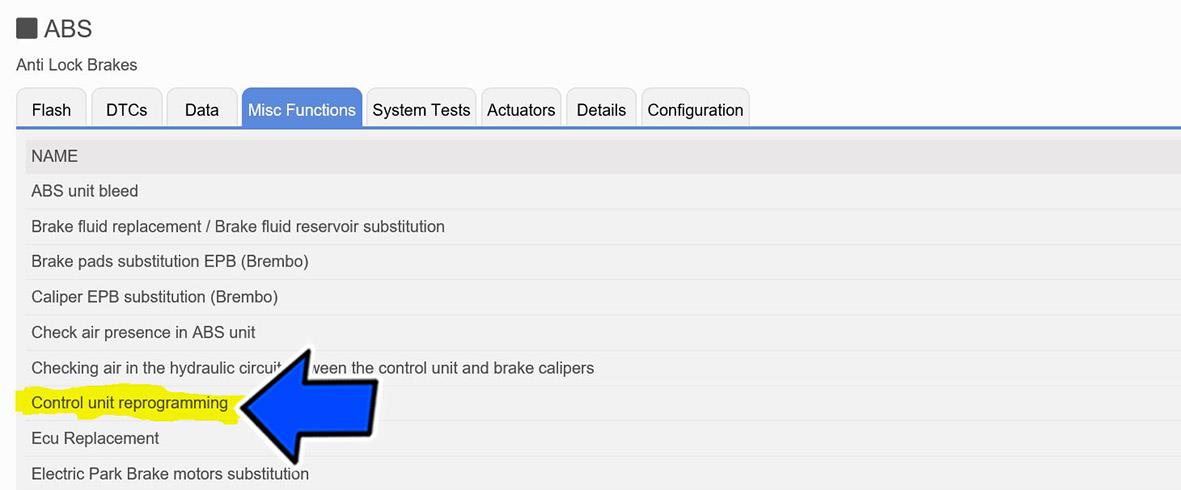
Figure 11 – Control Unit Reprogramming
- Select “Procedure to be carried out after ECU reprogramming” and then click “Continue” (Figure 12).
NOTE: If prompted with only the option to perform programming after a module replacement, complete all programming steps within that routine.
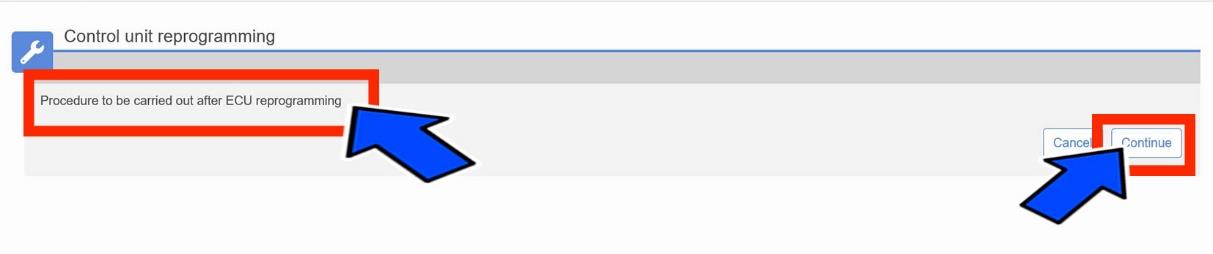
Figure 12 – Procedure to be Carried Out After ECU Reprogramming
- Select “Restore Vehicle” and then click “Continue” (Figure 13).
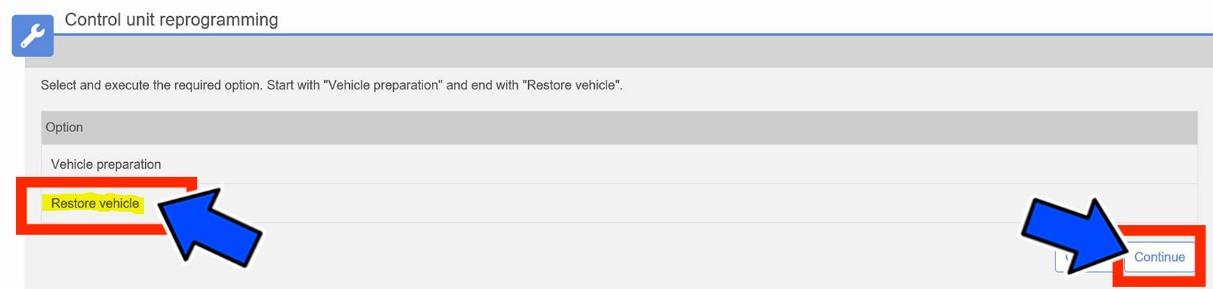
Figure 13 – Restore Vehicle
NOTE: Read all the instructions and warning messages displayed during reprogramming; do not continue without performing all of the relevant procedures when prompted.
- Check that every calibration has been completed.
- Click “View DTCs”, select “Clear All DTCs”, click “Continue” and then click “Close”.
- Place the ignition in the “OFF” position and then remove the wiTECH micro pod II device from the vehicle.
- Remove the battery charger from the vehicle.
- Close the vehicle hood.
- Return the vehicle to the customer or inventory.
Procedure B
NOTE: To update the ABS / BSM software to proper level, the procedure must be followed in the same sequence as listed below (Figure 14):
- Step 1 –Flash ABS / BSM “FINAL STEP”.
- Step 2 – Post reprogramming calibration procedure.
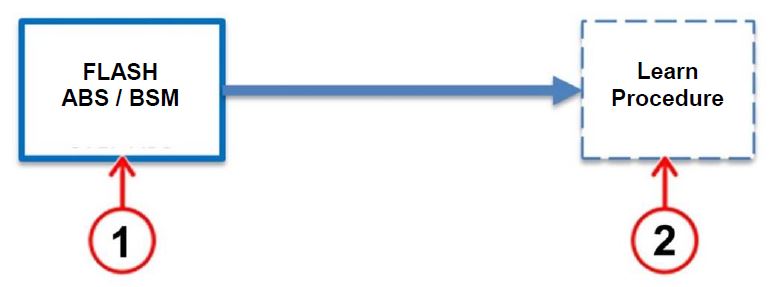
Figure 14 –ABS / BSM Software Reprogramming Sequence
Step 1 – Flash ABS / BSM – “FINAL STEP”
- From the ABS flash tab, select the ABS flash “FINAL STEP” and proceed with the reprogramming procedure (Figure 15).
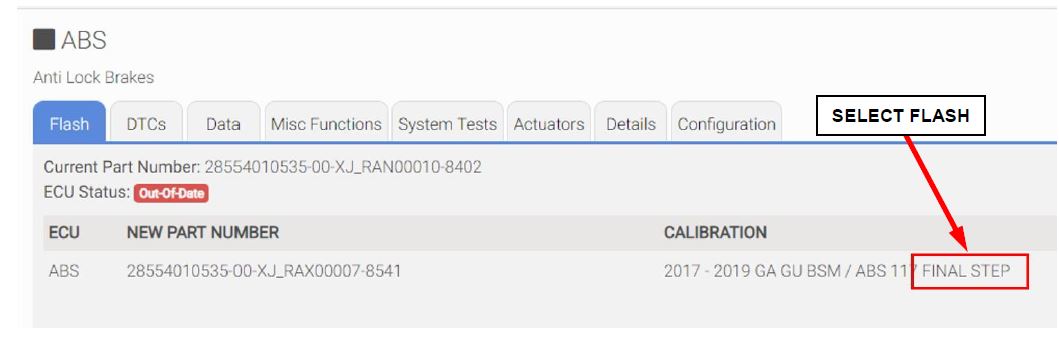
Figure 15 – Flash ABS / BSM “FINAL STEP”
- Read the flash special instructions page. Select “OK” to continue.
- From the flash ECU agreement page, agree to terms by checking the box.
- Select “Flash ECU” and then follow the wiTECH screen instructions to complete the flash.
NOTE: Read all the instructions and warning messages displayed during reprogramming; do not continue without performing all of the relevant procedures when prompted.
NOTE: If the reprogramming process is interrupted/aborted, it must be restarted.
- Click “View DTCs”, select “Clear All DTCs”, click “Continue” and then click “Close”.
- The following table shows the software (SW) codes of the ABS / BSM, before and after the reprogramming (Figure 16).
| Before ABS / BSM programming | After ABS / BSM programming | ||
| SW number | SW version | SW number | SW version |
| XJ_RAN00010 | 8401 | XJ_RAX00007 | 8541 |
Figure 16 – ABS / BSM Software Before and After Reprogramming
NOTE: The ABS/BSM Brake Pedal Feel software flash may be bypassed. Proceed to the next steps for Post-Reprogramming Calibration Procedure.
The brake pedal feel software flash may be performed on all (GU) Stelvio vehicles and will modify brake pedal feel. However, this flash is NOT required for Procedure B of this recall and labor time to perform this flash will NOT be reimbursed (Figure 17):
- “2018 – 2019 GU 2.9L BSM/ABS BRAKE PEDAL FEEL”
- “2018 – 2019 GU 2.0L GME BSM/ABS BRAKE PEDAL FEEL”
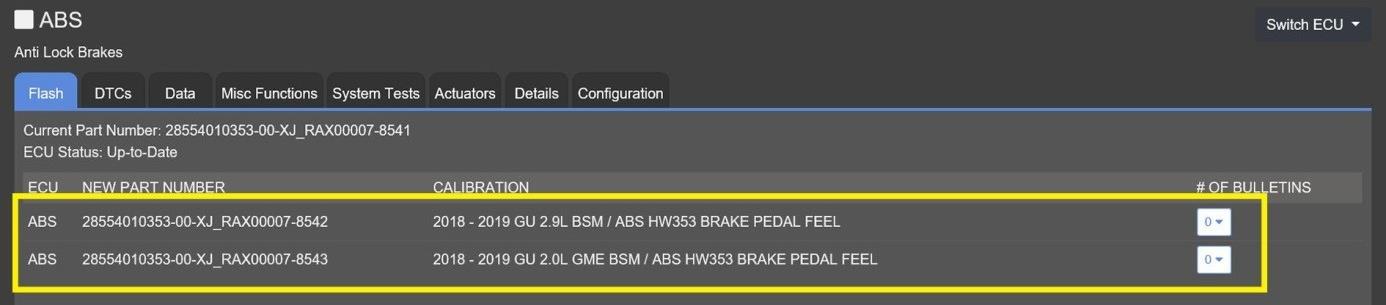
Figure 17 – ABS/BSM Brake Pedal Feel Software Flash Files
Step 2 – Post reprogramming calibration procedure
NOTE: The post-reprogramming calibration procedure must be carried out with the vehicle on a flat ground and no people on board.
- From the ABS “Misc. Functions” tab, select and run the “Control Unit Reprogramming” routine (Figure 18).
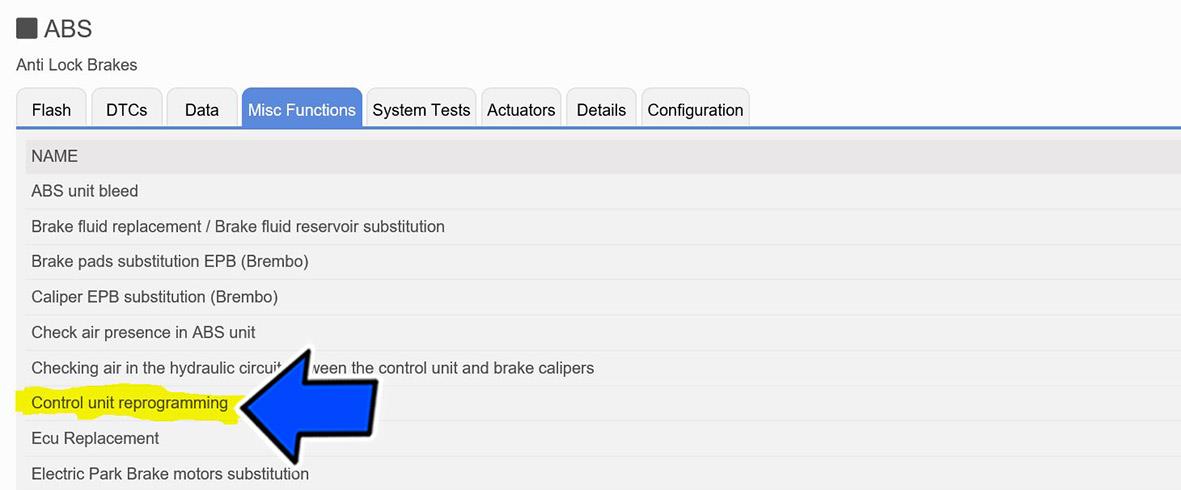
Figure 18 – Control Unit Reprogramming
- Select “Procedure to be carried out after ECU reprogramming” and then click “Continue” (Figure 19).
NOTE: If prompted with only the option to perform programming after a module replacement, complete all programming steps within that routine.
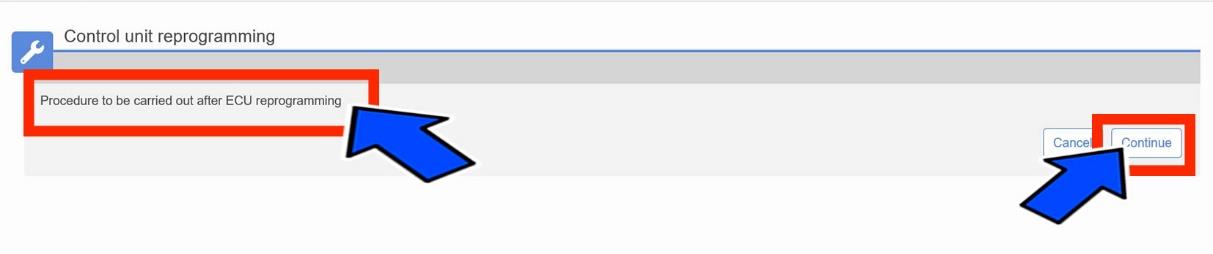
Figure 19 – Procedure to be carried out after ECU reprogramming
- Select “Restore Vehicle” and then click “Continue” (Figure 20).
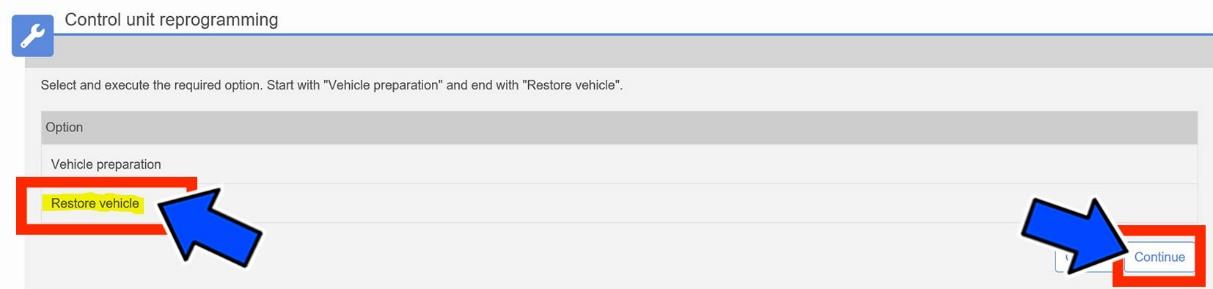
Figure 20 – Restore Vehicle
NOTE: Read all the instructions and warning messages displayed during reprogramming; do not continue without performing all of the relevant procedures when prompted.
- Check that every calibration has been completed.
- Click “View DTCs”, select “Clear All DTCs”, click “Continue” and then click “Close”.
- Place the ignition in the “OFF” position and then remove the wiTECH micro pod II device from the vehicle.
- Remove the battery charger from the vehicle.
- Close the vehicle hood.
- Return the vehicle to the customer or inventory.
Procedure C – ( Only for 2018 – 2019 GU )
NOTE: To update the ABS / BSM software (SW) to proper level, the procedure must be followed in the same sequence as listed below (Figure 21):
- Step 1 – First flash ABS / BSM – “FINAL STEP”
- Step 2 – Second flash “BRAKE PEDAL FEEL”
- Step 3 – Post reprogramming calibration procedure
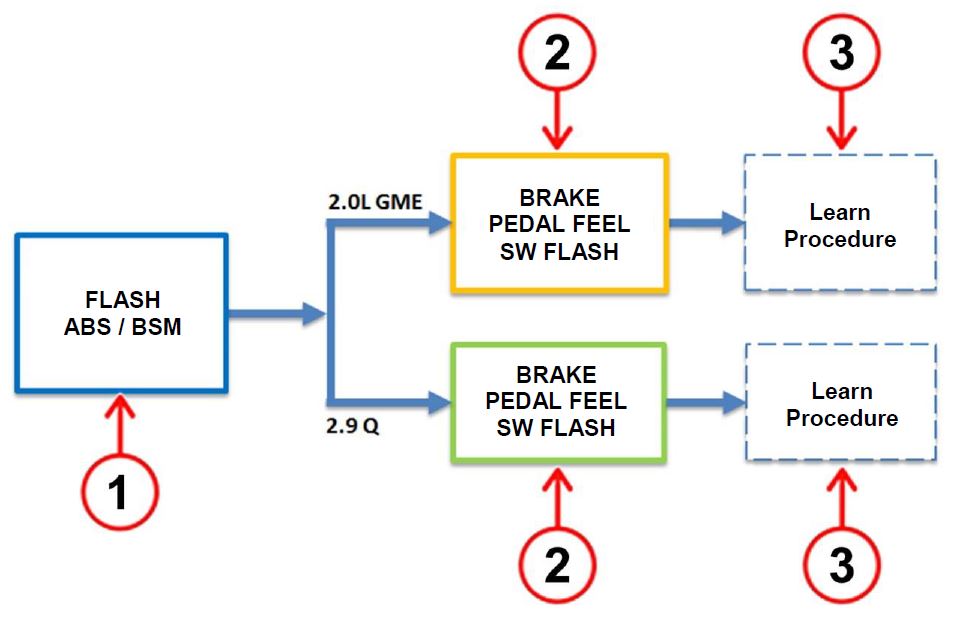
Figure 21 –ABS / BSM Software Reprogramming Sequence
CAUTION: Brake pedal feel software must be applied to (GU) Stelvio vehicles with the following production dates:
- Stelvio 2.9L V6: All vehicles
- Stelvio 2.0L GME: Built between April 12, 2018 to August 28, 2018
NOTE: Brake pedal feel software may be applied to all (GU) Stelvio vehicles.
Step 1 – First flash ABS / BSM – “FINAL STEP”
- From the ABS tab, select the ABS flash “FINAL STEP” and proceed with the reprogramming procedure (Figure 22).
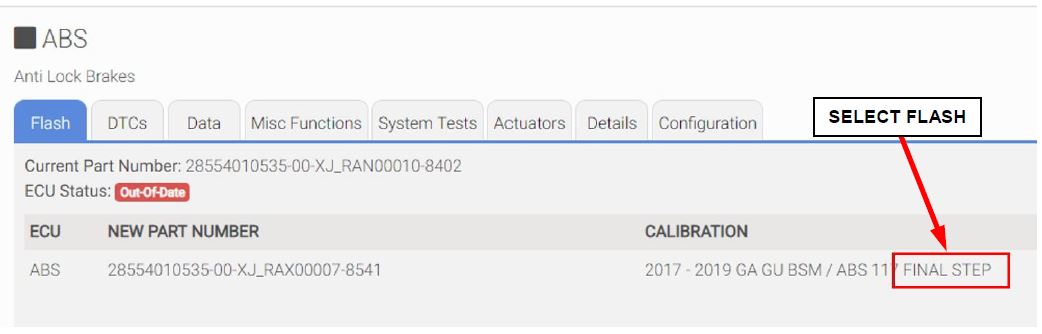
Figure 22 – First Flash ABS / BSM – “FINAL STEP”
- Read the flash special instructions page. Select “OK” to continue.
- From the flash ECU agreement page, agree to terms by checking the box.
- Select “Flash ECU” and then follow the wiTECH screen instructions to complete the flash.
NOTE: Read all the instructions and warning messages displayed during reprogramming; do not continue without performing all of the relevant procedures when prompted.
NOTE: If the reprogramming process is interrupted/aborted, it must be restarted.
- Click “View DTCs”, select “Clear All DTCs”, click “Continue” and then click “Close”.
- The following table shows the software (SW) codes of the ABS/BSM, before and after the reprogramming (Figure 23).
| Before BSM programming | After BSM programming | ||
| SW number | SW version | SW number | SW version |
| XJ_RAN00010 | 8402 | XJ_RAX00007 | 8541 |
| XJ_RAN00010 | 8403 | ||
Figure 23 – ABS / BSM Software Before and After Reprogramming
Step 2 – Second flash “BRAKE PEDAL FEEL”
- From the ABS flash tab, select the ABS / BSM flash name, according to the engine liter size installed in the vehicle described in the table below, then proceed with the reprogramming procedure (Figure 24).
| Engine | Original ABS SW Level | ABS SW After Programming | ABS SW flash name | ||
| SW number | SW version | SW number | SW
version | ||
| 2.9L | XJ_RAN00010 | 8402 | XJ_RAX00007 | 8542 | 2018 – 2019 GU 2.9L BSM/ABS B P F ABS |
| 2.0L | XJ_RAN00010 | 8403 | XJ_RAX00007 | 8543 | 2018 – 2019 GU 2.0L GME BSM/ABS B P F ABS |
Figure 24 – ABS / BSM Software (SW) Before and After Reprogramming
CAUTION: Brake pedal feel software must be applied to (GU) Stelvio vehicles with the following production dates:
- Stelvio 2.9L V6: All vehicles
- Stelvio 2.0L GME: Built between April 12, 2018 to August 28, 2018
NOTE: Brake pedal feel software may be applied to all (GU) Stelvio vehicles.
- Read the flash special instructions page. Select “OK” to continue.
- From the flash ECU agreement page, agree to terms by checking the box.
- Select “Flash ECU” then follow the wiTECH screen instructions to complete the flash (Figure 25).
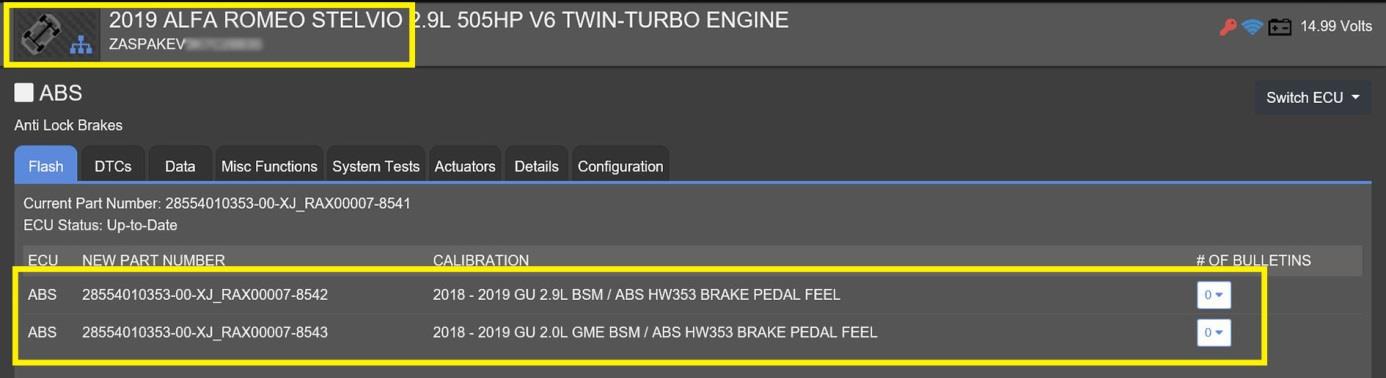
Figure 25 – Brake Pedal Feel Software
NOTE: Read all the instructions and warning messages displayed during reprogramming; do not continue without performing all of the relevant procedures when prompted.
NOTE: If the reprogramming process is interrupted/aborted, it must be restarted.
Step 3 – Post reprogramming calibration procedure
NOTE: The post-reprogramming calibration procedure must be carried out with the vehicle on a flat ground and no people on board.
- From the ABS “Misc. Functions” tab, select and run the “Control Unit Reprogramming” routine (Figure 26).
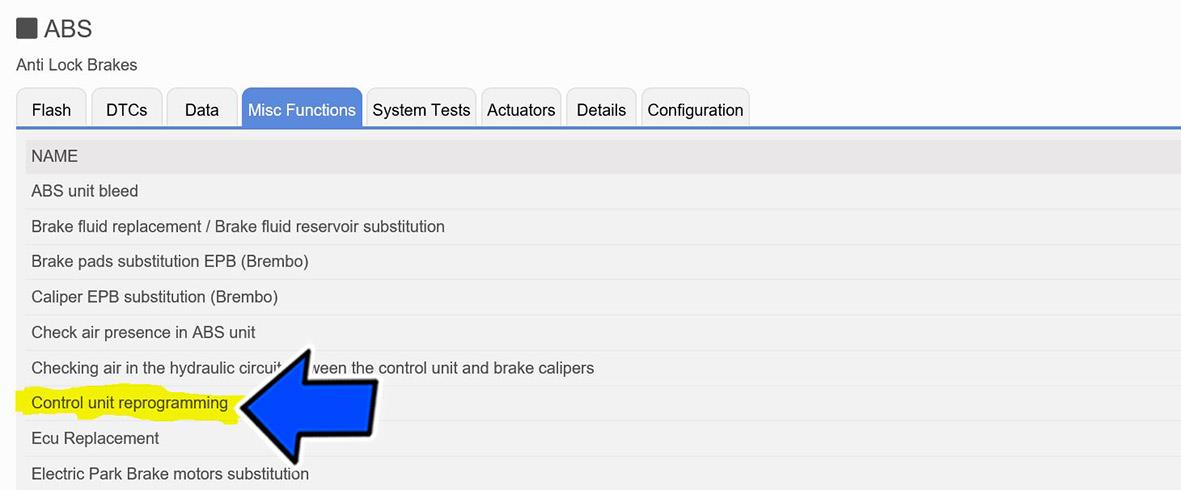
Figure 26 – Control Unit Reprogramming
- Select “Procedure to be carried out after ECU reprogramming” and then click “Continue” (Figure 27).
NOTE: If prompted with only the option to perform programming after a module replacement, complete all programming steps within that routine.
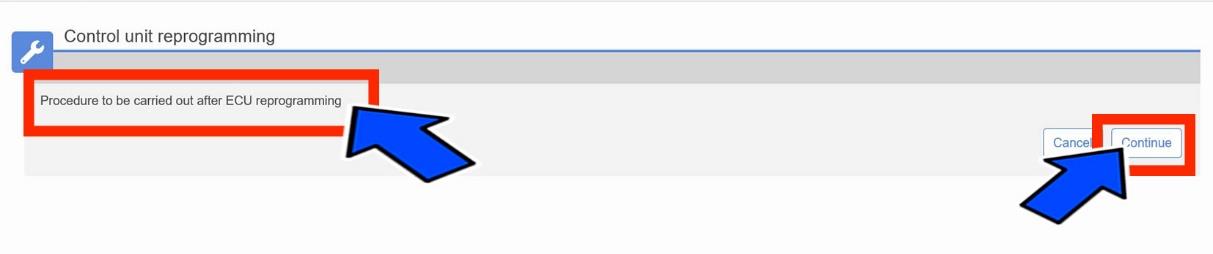
Figure 27 – Procedure to be Carried Out After ECU Reprogramming
- Select “Restore Vehicle” and then click “Continue” (Figure 28).
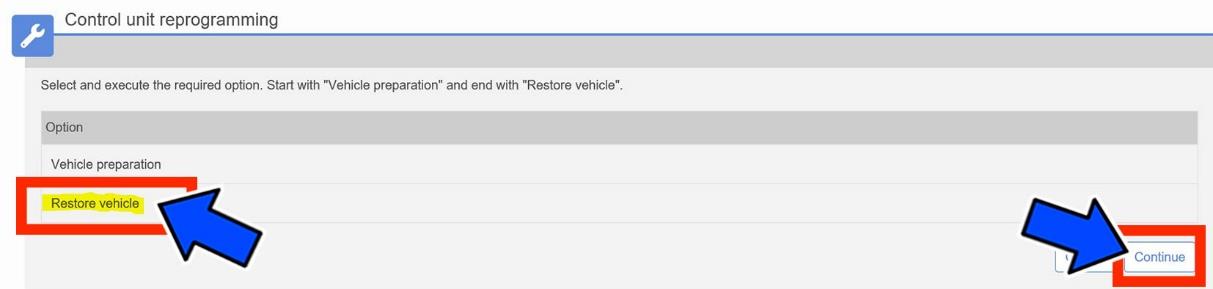
Figure 28 – Restore Vehicle
NOTE: Read all the instructions and warning messages displayed during reprogramming; do not continue without performing all of the relevant procedures when prompted.
- Check that every calibration has been completed.
- Click “View DTCs”, select “Clear All DTCs”, click “Continue” and then click “Close”.
- Place the ignition in the “OFF” position and then remove the wiTECH micro pod II device from the vehicle.
- Remove the battery charger from the vehicle.
- Close the vehicle hood.
- Return the vehicle to the customer or inventory.
Procedure D
NOTE: To update the ABS / BSM software (SW) to proper level, the procedure must be followed in the same sequence as listed below (Figure 29):
- Step 1 – Flash ABS / BSM “FINAL STEP”.
- Step 2 – Post reprogramming calibration procedure.
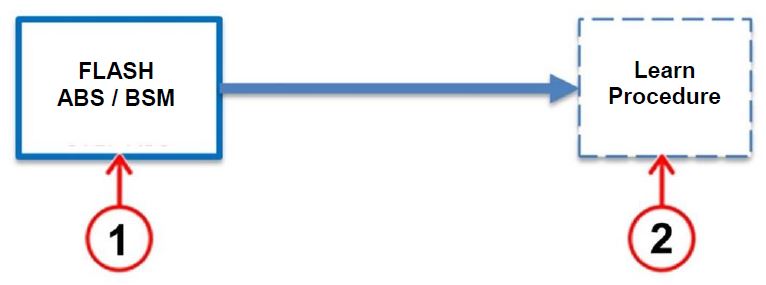
Figure 29 –ABS / BSM Software Reprogramming Sequence
Step 1 – Flash ABS / BSM “FINAL STEP”
- From the ABS flash tab, select the ABS flash “FINAL STEP” and proceed with the reprogramming procedure (Figure 30).
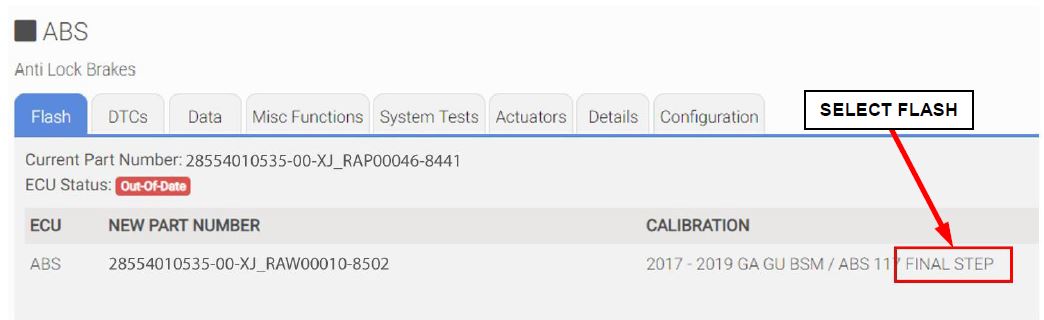
Figure 30 – Flash ABS / BSM “FINAL STEP”
- Read the flash special instructions page. Select “OK” to continue.
- From the flash ECU agreement page, agree to terms by checking the box.
- Select “Flash ECU” and then follow the wiTECH screen instructions to complete the flash.
NOTE: Read all the instructions and warning messages displayed during reprogramming; do not continue without performing all of the relevant procedures when prompted.
NOTE: If the reprogramming process is interrupted/aborted, it must be restarted.
- Click “View DTCs”, select “Clear All DTCs”, click “Continue” and then click “Close”.
- The following table shows the software (SW) codes of the ABS / BSM, before and after the reprogramming (Figure 31).
| Before ABS / BSM programming | After ABS / BSM programming | ||
| SW number | SW version | SW number | SW version |
| XJ_RAP00046 | 8441 | XJ_RAW00010 | 8502 |
Figure 31 – ABS / BSM Software Before and After Reprogramming
Step 2 – Post reprogramming calibration procedure
NOTE: The post-reprogramming calibration procedure must be carried out with the vehicle on a flat ground and no people on board.
- From the ABS “Misc. Functions” tab, select and run the “Control Unit Reprogramming” routine (Figure 32).
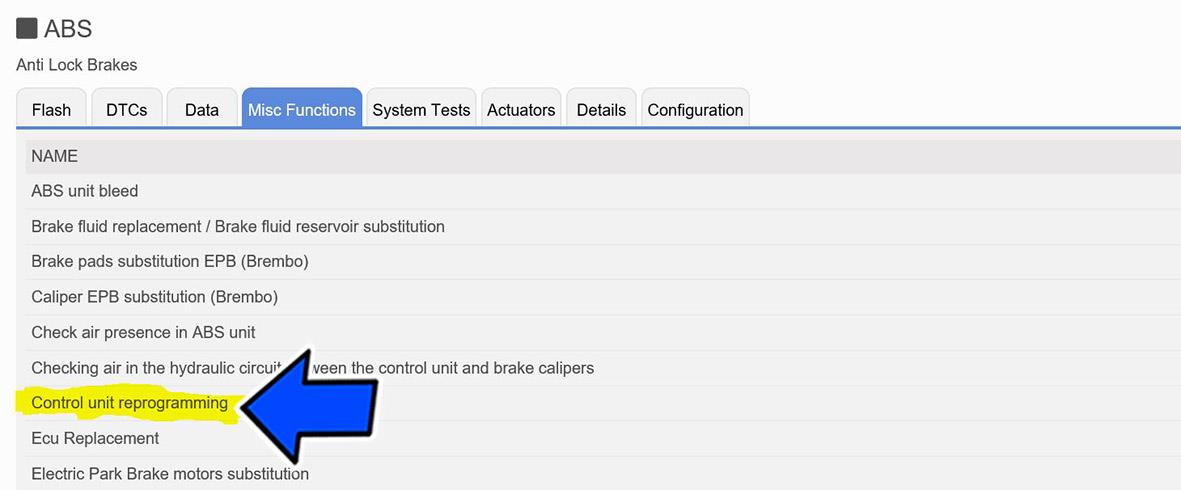
Figure 32 – Control Unit Reprogramming
- Select “Procedure to be Carried Out After ECU reprogramming” and then click “continue” (Figure 33).
NOTE: If prompted with only the option to perform programming after a module replacement, complete all programming steps within that routine.
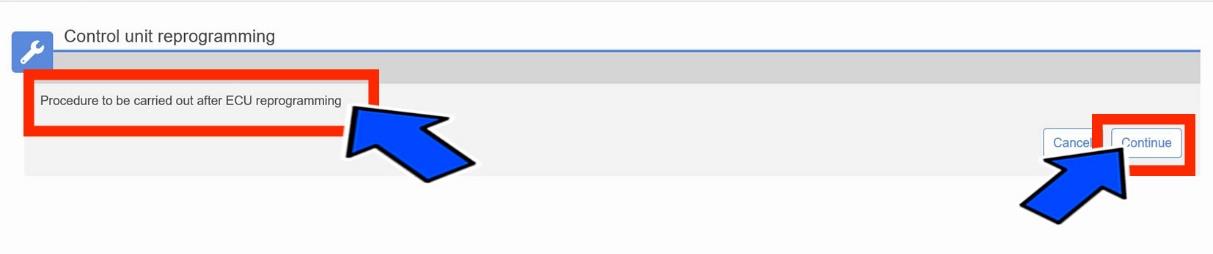
Figure 33 – Procedure to be Carried Out After ECU Reprogramming
- Select “Restore Vehicle” and then click “Continue” (Figure 34).
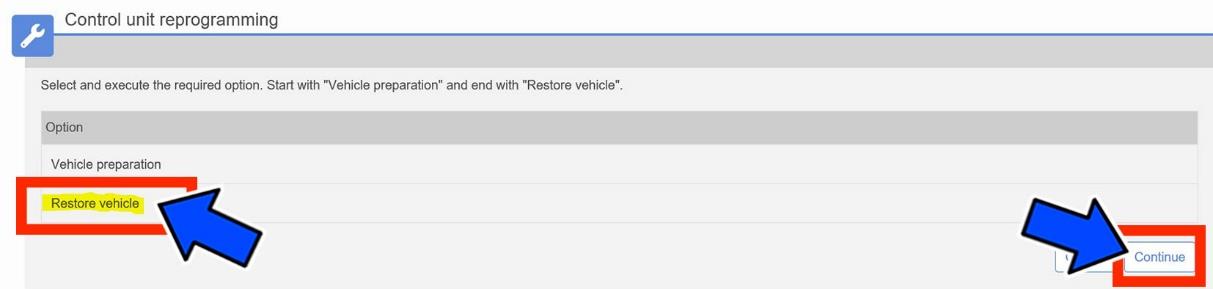
Figure 34 – Restore Vehicle
NOTE: Read all the instructions and warning messages displayed during reprogramming; do not continue without performing all of the relevant procedures when prompted.
- Check that every calibration has been completed.
- Click “View DTCs”, select “Clear All DTCs”, click “Continue” and then click “Close”.
- Place the ignition in the “OFF” position and then remove the wiTECH micro pod II device from the vehicle.
- Remove the battery charger from the vehicle.
- Close the vehicle hood.
- Return the vehicle to the customer or inventory.
Procedure E
NOTE: The procedures must be followed in the same sequence as listed below (Figure 35):
- Step 1 – First flash “2019 GA GU BSM/ABS HW 115 NAFTA”
- Step 2 – Post reprogramming calibration procedure.
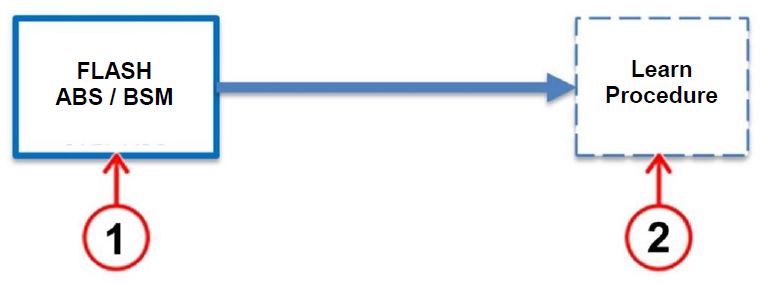
Figure 35 – ABS/BSM Software Reprogramming Sequence
Step 1 – First flash “2019 GA GU BSM/ABS HW 115 NAFTA”
- From the ABS flash tab, select the ABS flash “2019 GA GU BSM/ABS HW 115 NAFTA” and proceed with the reprogramming procedure (Figure 36).
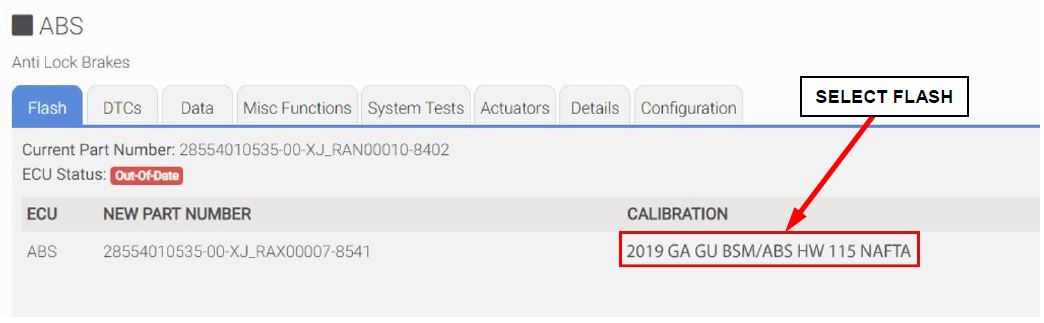
Figure 36 – Flash ABS / BSM “2019 GA GU BSM/ABS HW 115 NAFTA”
- Read the flash special instructions page. Select “OK” to continue.
- From the flash ECU agreement page, agree to terms by checking the box.
- Select “Flash ECU” and then follow the wiTECH screen instructions to complete the flash.
NOTE: Read all the instructions and warning messages displayed during reprogramming; do not continue without performing all of the relevant procedures when prompted.
NOTE: If the reprogramming process is interrupted/aborted, it must be restarted.
- Click “View DTCs”, select “Clear All DTCs”, click “Continue” and then click “Close”.
- The following table shows the software (SW) codes of the ABS/BSM before and after the third reprogramming (Figure 37).
| Before BSM programming | After BSM programming | ||
| SW number | SW version | SW number | SW version |
| XJ_RAT00007 | 84C1 | XJ_RAY00006 | 8581 |
| XJ_RAS00023 | 8481 | ||
| XJ_RAS00042 | 8482 | ||
Figure 37 – ABS/BSM Software Before and After Reprogramming
Step 2 – Post reprogramming calibration procedure
NOTE: The post-reprogramming calibration procedure must be carried out with the vehicle on a flat ground and no people on board.
- From the ABS “Misc. Functions” tab, select and run the “Control Unit Reprogramming” routine (Figure 38).
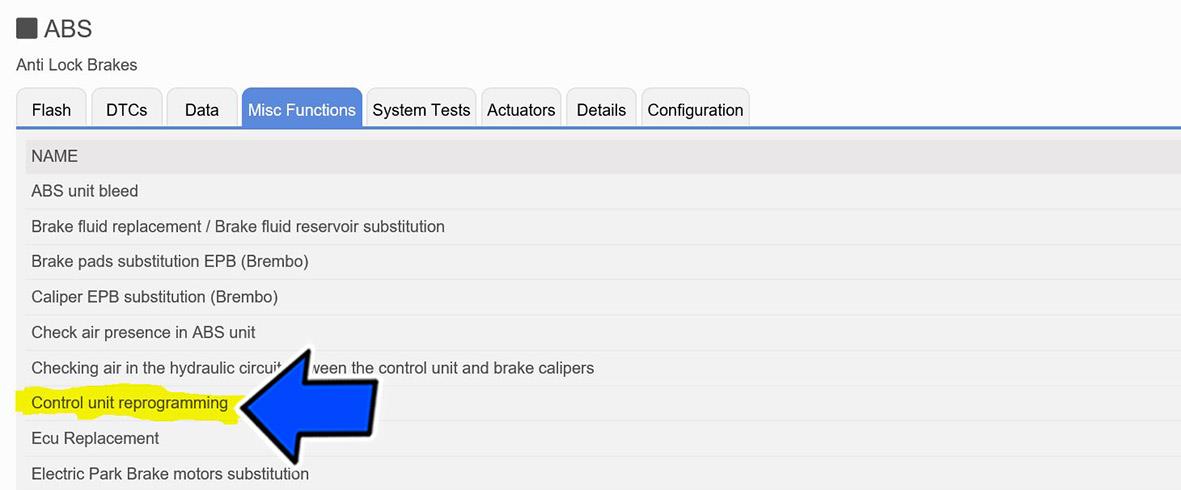
Figure 38 – Control Unit Reprogramming
- Select “Procedure to be carried out after ECU reprogramming” and then click “Continue” (Figure 39).
NOTE: If prompted with only the option to perform programming after a module replacement, complete all programming steps within that routine.
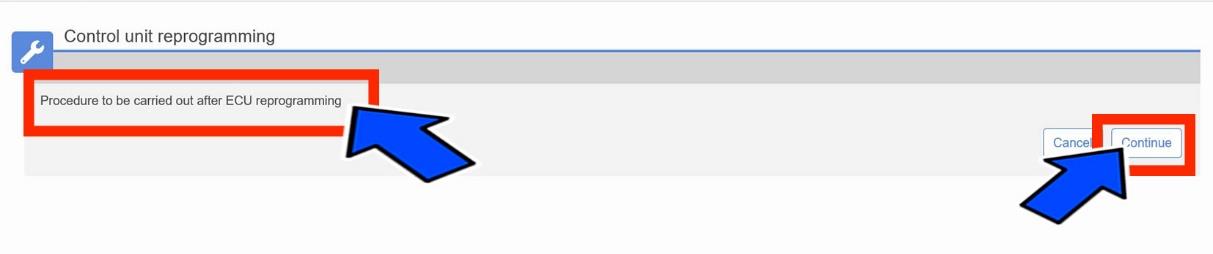
Figure 39 – Procedure to be Carried Out After ECU Reprogramming
- Select “Restore Vehicle” and then click “Continue” (Figure 40).
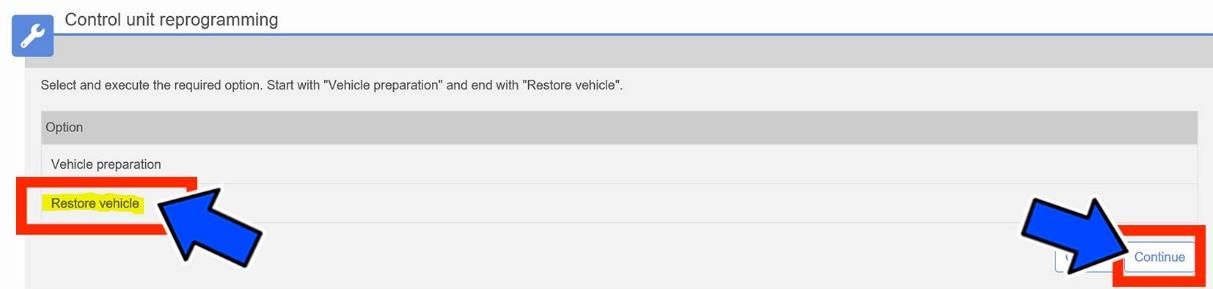
Figure 40 – Restore Vehicle
NOTE: Read all the instructions and warning messages displayed during reprogramming; do not continue without performing all of the relevant procedures when prompted.
- Check that every calibration has been completed.
- Click “View DTCs”, select “Clear All DTCs”, click “Continue” and then click “Close”.
- Place the ignition in the “OFF” position and then remove the wiTECH micro pod II device from the vehicle.
- Remove the battery charger from the vehicle.
- Close the vehicle hood.
- Return the vehicle to the customer or inventory.
Procedure F
- Place the ignition in the “OFF” position and then remove the wiTECH micro pod II device from the vehicle.
- Remove the battery charger from the vehicle.
- Close the vehicle hood.
- Return the vehicle to the customer or inventory.
SEOCONTENT-START
Completion Reporting and Reimbursement
Claims for vehicles that have been serviced must be submitted on the DealerCONNECT Claim Entry Screen located on the Service tab. Claims paid will be used by FCA to record recall service completions and provide dealer payments.
Use one of the following labor operation numbers and time allowance:
| Labor Operation Number | Time Allowance | |
|---|---|---|
| Inspect ABS/BSM Software Level and Reprogram ABS/BSM with procedure E | 18-V2-71-82 | 0.3 hours |
| Inspect ABS/BSM Software Level and Reprogram ABS/BSM with procedure D | 18-V2-71-83 | 0.3 hours |
| Inspect ABS/BSM Software Level and Reprogram ABS/BSM with procedure C | 18-V2-71-84 | 0.4 hours |
| Inspect ABS/BSM Software Level and Reprogram ABS/BSM with procedure B | 18-V2-71-85 | 0.3 hours |
| Inspect ABS/BSM Software Level and Reprogram ABS/BSM with procedure A | 18-V2-71-86 | 0.7 hours |
NOTE: See the Warranty Administration Manual, Recall Claim Processing Section, for complete recall claim processing instructions.
Dealer Notification
To view this notification on DealerCONNECT, select “Global Recall System” on the Service tab, then click on the description of this notification.
Owner Notification and Service Scheduling
All involved vehicle owners known to FCA are being notified of the service requirement by first class mail. They are requested to schedule appointments for this service with their dealers. A generic copy of the owner letter is attached.
Vehicle Lists, Global Recall System, VIP and Dealer Follow Up
All involved vehicles have been entered into the DealerCONNECT Global Recall System (GRS) and Vehicle Information Plus (VIP) for dealer inquiry as needed.
GRS provides involved dealers with an updated VIN list of their incomplete vehicles. The owner’s name, address and phone number are listed if known. Completed vehicles are removed from GRS within several days of repair claim submission.
To use this system, click on the “Service” tab and then click on “Global Recall System.” Your dealer’s VIN list for each recall displayed can be sorted by: those vehicles that were unsold at recall launch, those with a phone number, city, zip code, or VIN sequence.
Dealers must perform this repair on all unsold vehicles before retail delivery. Dealers should also use the VIN list to follow up with all owners to schedule appointments for this repair.
Recall VIN lists may contain confidential, restricted owner name and address information that was obtained from the Department of Motor Vehicles of various states. Use of this information is permitted for this recall only and is strictly prohibited from all other use.
Additional Information
If you have any questions or need assistance in completing this action, please contact your Service and Parts District Manager.
Customer Services / Field Operations
FCA US LLC
This notice applies to your vehicle,
[Model Year and Model] VIN XXXXXXXXXXXXXXXXX V27/NHTSA 19V-148
LOGO
VEHICLE PICTURE
YOUR SCHEDULING OPTIONS
- RECOMMENDED OPTION Call your authorized Alfa Romeo dealership.
- Call Alfa Romeo Premium Care at 1-866-932-3881. An agent can help schedule an appointment.
- Visit mopar.com, scan the QR code below, or download the Mopar Owner’s Companion App.
QR Code
Get access to recall notifications, locate your nearest dealer, and more through this website or Mopar Owner’s Companion App. You will be asked to provide your Vehicle Identification Number (VIN) to protect and verify your identity. The last eight characters of your VIN are provided above.
DEALERSHIP INSTRUCTIONS
Please reference Safety Recall V27.
IMPORTANT SAFETY RECALL
Adaptive Cruise Control
Dear [Name],
This notice is sent to you in accordance with the National Traffic and Motor Vehicle Safety Act.
FCA has decided that a defect, which relates to motor vehicle safety, exists in certain [2017 – 2019 Model Year (GA) Alfa Romeo Giulia and 2018 – 2019 Model Year (GU) Alfa Romeo Stelvio] vehicles equipped with Adaptive Cruise Control (ACC).
It is extremely important to take steps now to repair your vehicle to ensure the safety of you and your passengers.
WHY DOES MY VEHICLE NEED REPAIRS?
The ACC on your vehicle [1] may not allow cancelation of the ACC in specific driving conditions. In certain circumstances while ACC is active and the traction control detects a specific wheel slip, it is possible for a positive torque request to be locked by the Brake System Module (BSM) which may result in unexpected acceleration. If the driver does not shift to neutral or apply firm, sustained brake-pedal application to deactivate the ACC, this condition can cause a vehicle crash without prior warning.
HOW DO I RESOLVE THIS IMPORTANT SAFETY ISSUE?
FCA will repair your vehicle [2] free of charge (parts and labor). To do this, your dealer will update the BSM software of affected vehicles to eliminate a positive torque request lock. The estimated repair time is 30 minutes. In addition, your dealer will require your vehicle for proper check-in, preparation, and check-out during your visit, which require more time. Your time is important to us, so we recommend that you schedule a service appointment to minimize your inconvenience. Please bring this letter with you to your dealership.
TO SCHEDULE YOUR FREE REPAIR,
CALL YOUR ALFA ROMEO DEALER TODAY
WHAT IF I ALREADY PAID TO HAVE THIS REPAIR COMPLETED?
If you have already experienced this specific condition and have paid to have it repaired, you may visit www.fcarecallreimbursement.com to submit your reimbursement request online. [3] Once we receive and verify the required documents, reimbursement will be sent to you within 60 days. If you have had previous repairs performed and/or already received reimbursement, you may still need to have the recall repair performed.
We apologize for any inconvenience, but are sincerely concerned about your safety. Thank you for your attention to this important matter.
Customer Assistance/Field Operations
FCA US LLC
Mr. Mrs. Customer
1234 Main Street
Hometown, MI 48371
[1] If you no longer own this vehicle, please help us update our records. Call Alfa Romeo Premium Care at 1-866-932-3881 to update your information.
[2] If your dealer fails or is unable to remedy this defect without charge and within a reasonable time, you may submit a written complaint to the Administrator, National Highway Traffic Safety Administration, 1200 New Jersey Ave., S.E., Washington, DC 20590, or you can call the toll-free Vehicle Safety Hotline at 1-888-327-4236 (TTY 1-800-4249153), or go to safercar.gov.
[3] You can also mail in your original receipts and proof of payment to the following address for reimbursement consideration: FCA Customer Assistance, P.O. Box 21-8004, Auburn Hills, MI 48321-8007, Attention: Recall Reimbursement.
Note to lessors receiving this recall notice: Federal regulation requires that you forward this recall notice to the lessee within 10 days.
SEOCONTENT-END
5 Affected Products
Vehicles
| MAKE | MODEL | YEAR |
| ALFA ROMEO | GIULIA | 2017-2019 |
| ALFA ROMEO | STELVIO | 2018-2019 |
13 Associated Documents
Remedy Instructions and TSB
RCRIT-19V148-5869.pdf 1723.199KB
Defect Notice 573 Report
RCLRPT-19V148-7536.PDF 215.494KB
Remedy Instructions and TSB
RCRIT-19V148-7590.pdf 1671.079KB
Remedy Instructions and TSB
RCRIT-19V148-4192.pdf 1321.517KB
Remedy Instructions and TSB
RCRIT-19V148-6433.pdf 1581.458KB
ISSUED Owner Notification Letter(Part 577)
RCONL-19V148-5721.pdf 514.173KB
Recall Acknowledgement
RCAK-19V148-9472.pdf 245.158KB
Remedy Instructions and TSB
RCRIT-19V148-6741.pdf 1724.102KB
Recall Quarterly Report #1, 2019-1
RCLQRT-19V148-5284.PDF 211.147KB
Recall Quarterly Report #2, 2019-2
RCLQRT-19V148-1697.PDF 211.254KB
ISSUED Renotification Notice
RCRN-19V148-1782.pdf 173.473KB
Recall Quarterly Report #3, 2019-3
RCLQRT-19V148-2762.PDF 211.339KB
Recall Quarterly Report #4, 2019-4
RCLQRT-19V148-1120.PDF 211.456KB
Latest Recalls Documents
Reprogramming
Chrysler J2534 Application Overview
Flash Availability - J2534/Pass Thru Device
Vehicle to Diagnostic Tool Reference Chart
Chrysler Recommended J2534 Devices
For Chrysler recommended J2534 device, see below table.
| J2534 Device | Firmware Version |
| CTC Vehicle Box * | 1.9 |
| UCAN 2 | 1.0 |
| Blue Streak -2534 Global Programmer | 2.10 |
| Actia I+ME Passthru | 2.07 |
* Chrysler recommends the CTC Vehicle Box Device for Chrysler SCI ECU reprogramming. SCI reprogramming is used on most PCMs and TCMs prior to the introduction of CAN bus vehicles which began in 2004 (Durango).
Click on the link below to:
Download J2534 Application
(Install the wiTECH 2.0 J2534 Application on your computer)
Download the Setup Utility
(Configure your microPod/MDP device)
Launch wiTECH 2.0
(Once subscription and users are assigned to a tool please follow this link to access wiTECH)
https://www.mopartsp.com/support

- J2534 Pass-Thru Programmer: TOPDON RLink J2534 is an advanced diagnostic and reprogramming tool that support all J2534 protocols, as well as D-PDU, CAN-FD and DoIP, ensuring compatibility with a wide range of modern vehicles. It offers extensive versatility with support for over 18 major automotive brands, including Chrysler, Ford, GM, Nissan, Toyota, Honda, Subaru, Land Rover/Jaguar, Volvo, Wuling, Volkswagen/Audi, Mercedes-Benz, and BMW. NOTE: Not compatible with Ford IDS diagnostic software
- All-in-One OEM Diagnostics: This J2534 ECU programming tool elevates your automotive repair capabilities to new heights by delivering complete OEM diagnosis. Boasting comprehensive full-system diagnostics, intuitive repair guides, advanced ECU programming and coding, common reset services, a vast library of repair information and more, this all-in-one solution empowers technicians to effortlessly tackle complex vehicle issues with ease. *Not compatible with 24V vehicles
- Proven Performance You Can Trust: Backed by over 10000 real vehicle tests and benefit from a wealth of practical experience, this OEM reprogramming tool guarantees stable and exceptional performance. Supported by TOPDON's dedicated technical experts with in-depth knowledge of both auto repair and J2534 Pass-Thru programming, the RLink J2534 provides prompt and professional assistance, ensuring a smooth setup and reliable compatibility
- Integrated Excellence, Always Up-to-Date: Featuring the exclusive RLink Platform to provide a streamlined experience with one-click driver installation and management, ensuring flawless integration with your OE software, maintaining the original performance quality. The built-in operation guide makes mastering OE software quick and easy, so you can get started right away. Plus, with lifetime free updates, your diagnostics will stay current with the latest drivers and innovations
- Efficiency Meets Versatility: Engineered to support three CAN channels simultaneously - CAN FD and CAN-CC included, giving you the edge in fast troubleshooting. To perfectly synchronized with the OE software, please diagnose with active subscriptions and make sure your computer system is running a compatible 64-bit Windows version (7, 8, 10 or later) to fully leverage the power of RLink J2534. *We don't provide extra OE software

- Advanced VCI Box, Industry-leading J2534 Pass-Thru Technology: This J2534 Pass-Thru Programmer is designed espically for technicians, independent shop owners, and DIY enthusiasts, enables fast, reliable computer-based programming. It supports all J2534 protocols—including the latest DoIP and CAN FD—ensuring full compatibility with both legacy and next-generation vehicles.
- High-Speed OEM-Level Diagnostics & Programming: Unlock true OEM functionality with comprehensive system diagnostics, guided troubleshooting, coding, adaptations, resets, and programming—all designed to slash repair time. This all-in-one tool eliminates the need for multiple OEM devices, boosting efficiency and cutting costs. Equipped with High-Speed USB, it delivers 10x more data per second than competing solutions
- Coverage for 17 Car Brands & Ultra Reliability: Works seamlessly for Chrysler, for Ford(Forscan), for GM, for Nissan, for Toyota, for Honda, for Subaru(SSM4), for Land Rover/Jaguar, for Volvo, for Wuling, for Volkswagen, for Mercedes-Benz, and for BMW. Backed by over 10000 real vehicle tests and benefit from a wealth of practical experience, this OEM reprogramming tool guarantees stable and exceptional performance
- User-Friendly RLink Platform & Expert Support: TOPDON’s proprietary driver management platform offers a clean interface and lifetime free updates. Access a rich library of real-world case studies to stay ahead of the curve. Backed by a support team with 10+ years of J2534 and automotive repair experience, we provide one-on-one assistance to resolve any technical issue.
- 6.6 ft USB-C Cable & Portable Storage Case: The RLink J2534 diagnostic tool features a 6.6ft USB 2.0 Cable and a 1.2 ft OBDII Extension Cable, allows to connection your computer easily outside the vehicle. The included handled carry case offers easy portability, storage, and hanging options—keeping your gear clean and ready to go, anywhere.

- Dual WiFi & 10.1" Touchscreen: Provides a stable, high-speed wireless link 3x faster than bluetooth, and a responsive, professional interface. Topdon ONE obd2 scanner diagnostic tool ensures smooth, non-lagging diagnostic scan, boosting mechanic efficiency
- J2534 Pass-Thru Support: The included ONE VCI supports the J2534 standard, allowing it to function as a pass-thru device when paired with OEM diagnostic software.Through TOPDON’s RLink platform, technicians can perform dealer-level coding, expanding in-house capabilities without investing in multiple factory automotive scan tools
- OE Topology Mapping: Visualize the vehicle’s ECU network exactly as it’s built.Zoom, pan, and highlight specific modules to pinpoint component issues with precision.Topology mapping displays real-time communication between modules
- 50+ Service Functions: Covers high-demand services like ADAS calibration, DPF regen, TPMS reset, ABS bleed, and throttle adaptation.Expands your service menu, allows you to charge premium rates, and turns away zero jobs due to lack of tooling. Vehicle-specific functionality may vary
- Advaned ECU Coding: 10 of the most serviced brands in North America, including full ECU coding and flash hidden support for BMW, VW, Au-di, Benz, Porsche, Toyota, Ni ssan and more. Enables module replacement, feature customization, and personal settings with automatic backup or restore.Lets your shop safely offer high-margin customization services, attracting more customers and boosting profit

- [J2534 Pass-Thru Programmer] - TOPDON RLink J2534 is engineered for professional technicians, delivering OEM diagnostic and reprogramming capabilities. It supports all J2534 protocols, CAN-FD, DoIP, D-PDU. Compatible with 17 vehicle brands—such as Chrysler, Ford, GM, KIA, Hyundai, Nissan, Toyota, Honda, Subaru, Mitsubishi, MAZDA, Land Rover/Jaguar, Volvo, Volkswagen/Audi, Mercedes-Benz, and BMW. RLink J2534 can help reduce the cost of purchasing equipment from different brands.
- [All-in-One OEM Reprogramming and Diagnostics] - When seamlessly integrated with OEM diagnostic software, this dongle enables you to perform a wide range of functions, including ECU programming and coding, DTC reading and clearing, active tests, component matching, adaptations, rewriting, guided troubleshooting, and more. This all-in-one tool eliminates the need for multiple OEM devices, significantly boosting work efficiency.
- [Tested, Trusted, and Proven for Accuracy] - TOPDON RLink J2534 is renowned for its reliability, having successfully completed over 10,000 real-vehicle tests. The wealth of data and hands-on experience behind it ensures consistent performance and accurate results. You can trust this tool to deliver optimal performance.
- [One-Click Installation, Continuous Updates] - The exclusive TOPDON RLink platform streamlines installation with a one-click driver setup, allowing you to quickly access OEM software for diagnostic and reprogramming tasks. With lifetime free updates, your RLink J2534 stays current without any additional cost, ensuring reliable performance for the long term. *We don't provide extra OE software.
- [Works with Windows Compatibility and OEM Software Subscription] - The RLink J2534 supports three CAN channels - including CAN FD and CAN-CC, providing advantages in the process of rapid troubleshooting. Compatible with Windows 7, 8 and 10 (64-bit) and higher versions of the system. For full functionality, an active OEM software subscription is required for each supported vehicle brand. Please note that the dongle does not include OEM software, which must be purchased separately to access brand-specific diagnostic and reprogramming features.

- 💯【Conta.ct us for Support Directly】For any issues experienced after purchase, please reach out to: 📞autelsupply@ outlook. com🛣️. Our team will provide perfect solution for you. For tech support or [explore additional accessory], please cont.act our team: 📞autelsupply@ outlook. com🛣️.
- 🌎【Autel J2534 Pass-Thru Progra.mmer】As an OEM Pass-Thru Progra.mmer Vehicle interface for multiple makes, Autel MaxiFlash J2534 support all J2534 protocols, D-PDU, CAN-FD and DoIP protocols. 2026 newer Autel MaxiFlash J2534 VCI can works with P-C and download OEM vehicle software, seamlessly conduct OE-level diagnostic-progra.mming-c0ding. Also, Work with Elite II Pro/ Ultra Lite/ MS909/ MS909CV/ MS909EV to directly pro.gram on Merce.des-Be.nz & BM.W. Autel J2534 Progr.ammer is a multi-functional device and supports 10+ major brands, including for Hond.a, G.M, LandRo.ver, BM.W, Chrysl.er, For.d, Hyun.dai, Ki.a, Merc.edes B.enz, Toyot.a, Volksw.agen etc.
- 🌎【Enhanced Protocol: J2534/D-PDU/RP1210/CAN FD/DoIP】Autel MaxiFlash JVCI is a blueto.oth communicate device, it supports latest CAN FD DoIP CAN protocols, compliant with automotive D-PDU/ J2534/ RP1210 standards. It can perform standard PassThru J2534 functions: compatible with Toyota Techstream, Volvo VIDA, Honda HDS, Jaguar Land Rover IDS and BM.W 3G for OEM diagnostics. CAN FD protocol is mainly for GM 2019+, DoIP protocol is mainly for Volvo 2018+, for L-and Rover/for Jaguar 2017+, for BM.W F chassis and G chassis.
- 🌎【Compatible with P-C/ WIND.OWS 】The Autel J2534 VCI can be connected to a compu.ter via a data cable; once the corresponding OEM software is installed, it enables do advanced progr.amming and c0ding on your vehicles. Easy Steps: 1) Connect to P-C via a USB cable 2) download OEM vehicle software 3) Start Diagnose. Take For.d for example, you can download OEM software on mot.orcraft.erservi.ce website, such as: For.d Diagnostic Software downloads, As B.uilt Data, Updated Cali.bration information, then use different software do relevant features.
- 🌎【Work with Autel Elite II Pro/ Ultra Lite/ MS909/ MS909CV/ MS909EV】This 2026 latest Autel J2534 Pass-Thru VCI is 100% compatible with Autel Elite II Pro Ultra Lite MS909 MS909CV MS909EV to perform advanced functions from diagnose to progra.mming.

- 【J2534 Pass-Thru Device】 This budget-friendly J2534 pass-thru device delivers OEM diagnostics and reprogramming capabilities for dealerships, repair shops and automotive DIY enthuisasts, enables you diagnose, program and repair the vehicles more efficiently and precisely. Supporting J2534, D-PDU, CAN-FD and DoIP, this J2534 passthru tool ensures wide vehicle coverage. It's compatible with OE software application, ensuring seamless integration and original performance quality
- 【All-in-One Diagnostic Tool】 Simplify your workflow and tackle the complex diagnostics and repairs with confidence! This J2534 passthrough tool provides full system diagnosis, bi-directional control, maintenance reset services, ECU programming and ECU coding to run advanced diagnostics and programming. Equipped with the specialized platform, this J2534 pass-thru tool is fully compatible with OE software that helps technicians confidently handle complicated vehicle repair issues
- 【J2534 Diagnostic Tool】 The Tabscan J2534 pass-thru device is built with a dedicated platform, making it ideal for both professional and personal use. Simply download the driver for your ford vehicle within the platform—ensuring only one driver is installed at a time. Then connect the device to your vehicle’s OBD2 port and link it to your computer using the included USB A to USB C cable. Finally launch your OE software, select Tabscan J2534 VCI as interface, and begin diagnose and program
- 【Universal Compatibility】 Tabscan J2534 reprogramming tool is designed to be compatible with Ford vehicles for advanced diagnostics and programming. It supports J2534 protocols, along with D-PDU, CAN-FD and DoIP, ensuring seamless connectivity with older or modern vehicles. This J2534 diagnostic tool only works with computer running on windows 7/10/11. Vehicle compatibility varies by model or year, please confirm with us before purchase. Note: It's not compatible with 24V vehicles
- 【Professional Technical Support】 Tabscan J2534 pass-thru device provides a stable and seamless connection between your vehicle and computer for diagnostics, programming, and coding. But that's not all—we go beyond hardware. Our dedicated technical support team brings deep expertise in automotive diagnostics and programming. Whether you need help with setup, troubleshooting or latest diagnostic resources and upgrades, we provide fast, professional and reliable support every step of the way
This product presentation was made with AAWP plugin.