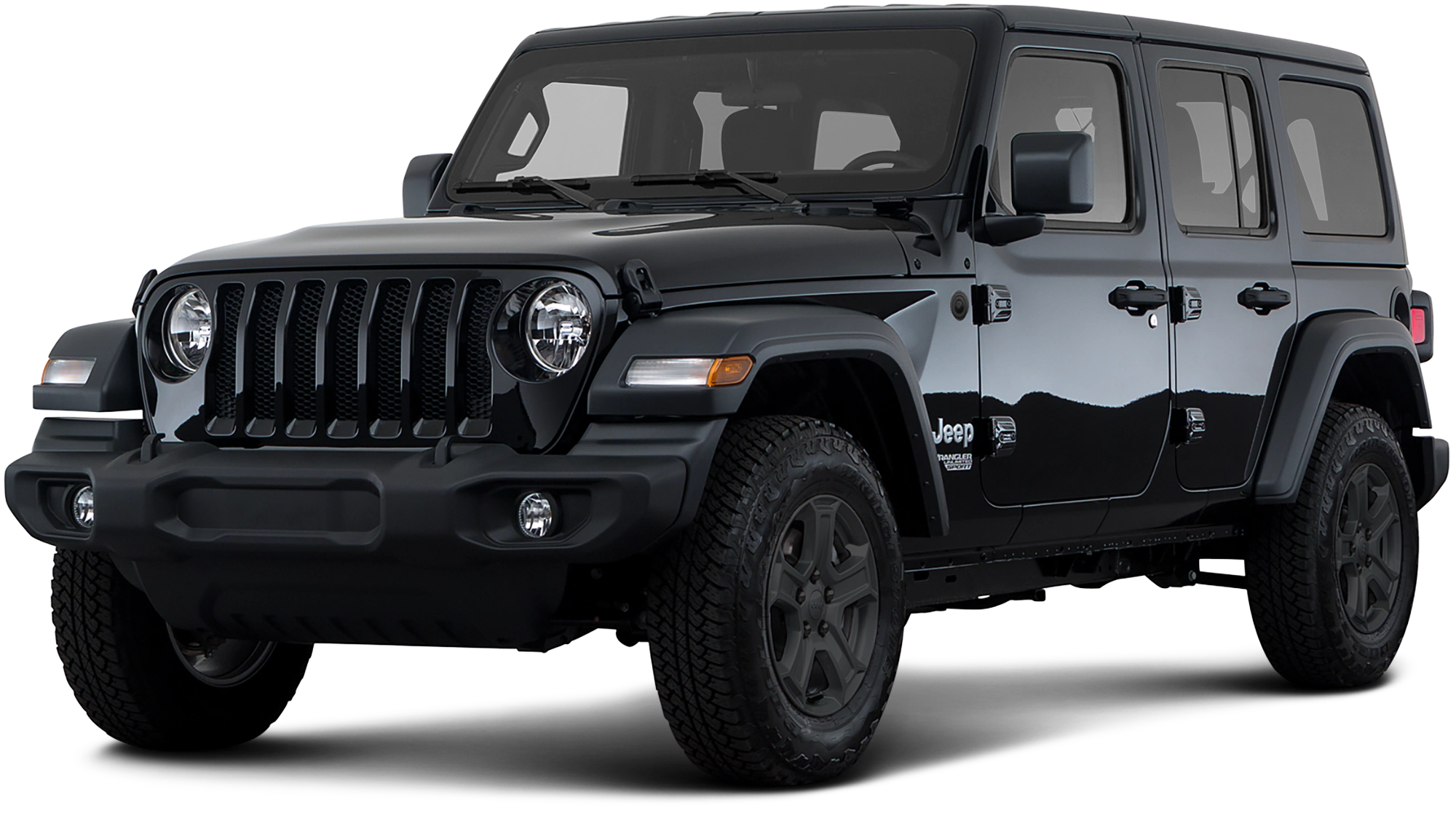
August 25, 2022 NHTSA CAMPAIGN NUMBER: 22V638000
Rearview Camera Image May Not Display/FMVSS 111
A rearview camera that does not display an image reduces the driver’s rear view, increasing the risk of a crash.
NHTSA Campaign Number: 22V638
Manufacturer Chrysler (FCA US, LLC)
Components BACK OVER PREVENTION
Potential Number of Units Affected 7,895
Summary
Chrysler (FCA US, LLC) is recalling certain 2020-2021 Jeep Wrangler, RAM 1500 and 2021 Jeep Gladiator vehicles. A radio software error may prevent the rearview image from displaying. As such, these vehicles fail to comply with the requirements of Federal Motor Vehicle Safety Standard number 111, “Rear Visibility.”
Remedy
Dealers will update the radio software, free of charge. Owner notification letters were mailed October 6, 2022. Owners may contact FCA US, LLC customer service at 1-800-853-1403. FCA, LLC’s number for this recall is Z86.
Notes
Owners may also contact the National Highway Traffic Safety Administration Vehicle Safety Hotline at 1-888-327-4236 (TTY 1-800-424-9153), or go to www.nhtsa.gov.
Check if your Vehicle has a Recall
New Safety Recall Advanced Communication – Z86
FCA US LLC (FCA US) has announced a safety recall on certain 2020 through 2021 Model Year (JL) Jeep® Wrangler and (DT) Ram 1500 Pickups and 2021 (JT) Jeep® Gladiator vehicles equipped with radio sales codes UAM, UCM, UAG or UCG.
REASON FOR THIS SAFETY RECALL
Some of the above vehicles equipped with EcoDiesel engines and certain radios may experience persistent radio resets which may result in the rearview camera image not displaying during certain backing events. The vehicle operator will notice that the rearview image is not displayed if attempting to reference the image while backing. If this warning is not heeded, backing without verifying it is safe to do so could lead to an increased risk of injury to people outside the vehicle.
The condition described above does not comply with Federal Motor Vehicle Safety Standard (“FMVSS”) 571.111 S6.2.6 which requires that “The rear visibility system default to the rearview image being visible, and meet the requirements of FMVSS 571.111 S6.2.1 (field of view) and S6.2.2 (image size) at the beginning of each backing event, regardless of any modifications to the field of view that the driver had previously selected.”
SERVICE ACTION
FCA US will conduct a voluntary safety recall to update the radio software. The remedy for this condition is not currently available. Dealers will be notified of the launch of this safety recall by way of established communication methods. This recall is estimated to launch in 3rd Quarter of 2022.
October 2022
Dealer Service Instructions for:
Safety Recall Z86 / NHTSA 22V-638 Rear View Camera
Effective immediately all repairs on involved vehicles are to be performed according to this recall. Service Bulletin (TSB) 08-015-21 and 08-088-21REV.A is no longer applicable for the vehicles involved in this recall. Those vehicles that have already had this repair performed, as determined by our warranty records, have been excluded from this recall.
Remedy Available
NOTE: This recall applies only to the above vehicles equipped with an EcoDiesel engine and radio sales codes UAM, UCM, UAG or UCG.
NOTE: Some vehicles above may have been identified as not involved in this recall and therefore have been excluded from this recall.
IMPORTANT: Some of the involved vehicles may be in dealer new vehicle inventory. Federal law requires you to complete this recall service on these vehicles before retail delivery. Dealers should also consider this requirement toapply to used vehicle inventory and should perform this recall on vehicles in for service. Involved vehicles can be determined by using the VIP inquiry process.
Subject
The rear view camera on about 7,890 of the above vehicles with EcoDiesel engine and certain radios may experience persistent radio resets which may result in the rearview camera image not displaying during certain backing events. The vehicle operator will notice that the rearview image is not displayed if attempting to reference the image while backing. If this warning is not heeded, backing without verifying it is safe to do so could lead to an increased risk of injury to people outside the vehicle.
The condition above fails to conform to the requirements of Federal Motor Vehicle Safety Standard (FMVSS) No. 571.111 S6.2.6 which requires that “The rear visibility system default to the rearview image being visible, and meet the requirements of FMVSS 571.111 S6.2.1 (field of view) and S6.2.2 (image size) at the beginning of each backing event, regardless of any modifications to the field of view that the driver had previously selected.”
Repair
Update the radio software to 1848.34 for model year 2020 vehicles, or 2036.06 for 2021 model year vehicles.
Parts Information
No parts are required to perform this service procedure.
Parts Return
No parts return required for this campaign.
Special Tools
The following special tools are required to perform this repair:
| ➢ NPN | USB Flash Drive (8 GB or larger) |
NOTE: An 8 GB USB flash drive is required for this update. It is also recommended to use a quality, name brand (Kingston®) flash drive over a generic USB flash drive.
Service Procedure
Is this a 2020 Model Year vehicle w/ Radio Software Level 18.xx.xx?
- YES >>> Proceed to Service Procedure A. Software Download
- NO >>> Proceed to Service Procedure B. Software Download
A. Software Download
- Has an 8 GB USB flash drive been created?
- YES >>> Proceed to Step 11.
- NO >>> Proceed to Step 2
- Perform the following steps to format the USB flash drive (Figure 1):
- Select “FAT32” format.
- Select “Default allocation size” under Allocation Unit Size.
- Select “Quick Format” under Format Options.
- Click “Start”.
- Go to DealerCONNECT>Service>Uconnect Command Center>Uconnect>More Information>Dealer software downloads to download the files.
- If a security message appears “Do you want to view only the web page content that was delivered securely?” (Figure 2). Press “No” to continue.
NOTE: If the software cannot be downloaded, make sure you have proper security access. If not, have the Service Manager or Shop Foreman download the software update.
- Use a blank USB flash drive with at least 8 GB of space. Follow the on-screen instructions to download the software files.
- Download the software update file to your local PC’s desktop. Make sure to select the “MAC” radial button for all downloads (Figure 3).
- Be sure to download the file to your PC’s desktop and open it (Figure 4).
NOTE: The USB should only contain a folder labeled “18000000” on it after files are extracted to it.
- Extract the downloaded file to the USB flash drive (Figure 5).
NOTE: It may take a few minutes for an accurate extraction time to be displayed.
- Once the file is extracted to the USB flash drive, it is recommended to label the USB flash drive with the bulletin number and proper radio Sales Code.
NOTE: Eject the USB flash drive properly from your PC. Failure to eject the USB flash drive properly may result in an improper file byte size and cause the update to not fully download.
- Perform the following steps to properly eject the USB flash drive (Figure 6):
- Right click on the location of the USB flash drive.
- Click “Eject” to avoid data corruption.
- Remove the USB flash drive from the PC.
NOTE: Verify the vehicle fuel level is at least 1/8 of a tank. If not, add fuel as required. If necessary, take vehicle out of ship mode and enter customer mode.
- Shut off all remaining accessories for the duration of the update (flashers, climate controls, etc.).
- Wait for the radio to fully power on and initialize. Ensure all splash, partner logo, animation, disclaimer and main screens have loaded, before starting the software update.
CAUTION! Ensure no other device is plugged into any of the USB ports while performing this update. If other devices are connected to the USB ports during the update, it may cause failure of files to be loaded. Failure to do so may cause the radio to need replacement.
NOTE: The engine must be running and radio powered on during the update. Failure to do so may result in the radio not being updated and create connectivity issues. DO NOT remove the USB flash drive during the update.
- Start the vehicle and insert the USB flash drive into the USB port.
- Wait for the software update pop-up window to appear on the screen.
NOTE: There can be more than one older current software level depending on vehicle/radio manufacture time of build.
- Verify the screen states the following: “Current: 18XX.XX Update to: **1848.34** Approx time: 30 minutes”. Is the radio current software level at or higher than **1848.34?*
➢ YES >>> The radio software is already up to date. Press “Cancel” to exit. ➢ NO >>> The radio software needs to be updated. Proceed to Step 16.
NOTE: During the first 30 seconds of the software update, the current software is erased. The radio will then re-boot and re-start to begin the update of the software. Many software partitions are displayed on the screen during the update process.
- Press “Yes” to start the update. The software update takes approximately 30 minutes to complete (Figure 7).
- Did the update fail after insertion of the USB flash drive into the USB port?
➢ YES >>> Re-start update procedure at Step 11. ➢ NO >>> Proceed to Step 18.
NOTE: Do not remove the USB flash drive before you are instructed to (Figure 8).
- Wait for the “Radio was successfully updated” screen (Figure 9).
- Wait until radio resets and audio is heard before removing the USB flash drive.
- Verify the software version is **1848.34** by re-inserting the USB flash drive into the USB port. Did the Software Update pop-up again, displaying the following: “Current: **1848.34 Update to: 1848.34** Update not available to same software version”?
- YES >>> The software update is complete, press “Cancel” then remove the USB flash drive from the USB port.
- NO >>> Verify the file sizes on the USB flash drive to ensure they are correct and then attempt the update again. Re-start at Step 11.
- Return the vehicle to the customer.
B. Software Download
- Has an 8 GB USB flash drive been created?
- YES >>> Proceed to Step 11.
- NO >>> Proceed to Step 2
- Perform the following steps to format the USB flash drive (Figure 1):
- Select “FAT32” format.
- Select “Default allocation size” under Allocation Unit Size.
- Select “Quick Format” under Format Options.
- Click “Start”.
- Go to DealerCONNECT>Service>Uconnect Command Center>Uconnect>More Information>Dealer software downloads to download the files.
- If a security message appears “Do you want to view only the web page content that was delivered securely?” (Figure 2). Press “No” to continue.
NOTE: If the software cannot be downloaded, make sure you have proper security access. If not, have the Service Manager or Shop Foreman download the software update.
- Use a blank USB flash drive with at least 8 GB of space. Follow the on-screen instructions to download the software files.
- Download the software update file to your local PC’s desktop. Make sure to select the “MAC” radial button for all downloads (Figure 3).
- Be sure to download the file to your PC’s desktop and open it (Figure 4).
NOTE: The USB should only contain a folder labeled “18000000” on it after files are extracted to it.
- Extract the downloaded file to the USB flash drive (Figure 5).
NOTE: It may take a few minutes for an accurate extraction time to be displayed.
- Once the file is extracted to the USB flash drive, it is recommended to label the USB flash drive with the bulletin number and proper radio Sales Code.
NOTE: Eject the USB flash drive properly from your PC. Failure to eject the USB flash drive properly may result in an improper file byte size and cause the update to not fully download.
- Perform the following steps to properly eject the USB flash drive (Figure 6):
- Right click on the location of the USB flash drive.
- Click “Eject” to avoid data corruption.
- Remove the USB flash drive from the PC.
NOTE: Verify the vehicle fuel level is at least 1/8 of a tank. If not, add fuel as required. If necessary, take vehicle out of ship mode and enter customer mode.
- Shut off all remaining accessories for the duration of the update (flashers, climate controls, etc.).
- Wait for the radio to fully power on and initialize. Ensure all splash, partner logo, animation, disclaimer and main screens have loaded, before starting the software update.
CAUTION! Ensure no other device is plugged into any of the USB ports while performing this update. If other devices are connected to the USB ports during the update, it may cause failure of files to be loaded. Failure to do so may cause the radio to need replacement.
NOTE: The engine must be running and radio powered on during the update. Failure to do so may result in the radio not being updated and create connectivity issues. DO NOT remove the USB flash drive during the update.
- Start the vehicle and insert the USB flash drive into the USB port.
- Wait for the software update pop-up window to appear on the screen.
NOTE: There can be more than one older current software level depending on vehicle/radio manufacture time of build.
- Verify the screen states the following: “Current: 18XX.XX Update to: **2036.06** Approx time: 30 minutes”. Is the radio current software level at or higher than **2036.06?*
➢ YES >>> The radio software is already up to date. Press “Cancel” to exit. ➢ NO >>> The radio software needs to be updated. Proceed to Step 16.
NOTE: During the first 30 seconds of the software update, the current software is erased. The radio will then re-boot and re-start to begin the update of the software. Many software partitions are displayed on the screen during the update process.
- Press “Yes” to start the update. The software update takes approximately 30 minutes to complete (Figure 7).
- Did the update fail after insertion of the USB flash drive into the USB port?
➢ YES >>> Re-start update procedure at Step 11. ➢ NO >>> Proceed to Step 18.
NOTE: Do not remove the USB flash drive before you are instructed to (Figure 8).
- Wait for the “Radio was successfully updated” screen (Figure 9).
- Wait until radio resets and audio is heard before removing the USB flash drive.
- Verify the software version is **2036.06** by re-inserting the USB flash drive into the USB port. Did the Software Update pop-up again, displaying the following: “Current: **2036.06 Update to: 2036.06** Update not available to same software version”?
- YES >>> The software update is complete, press “Cancel” then remove the USB flash drive from the USB port.
- NO >>> Verify the file sizes on the USB flash drive to ensure they are correct and then attempt the update again. Re-start at Step 11.
- Return the vehicle to the customer.
Chronology :
- On July 18, 2022, in discussions with NHTSA’s Office of Vehicle Safety Compliance (“OVSC”) regarding interpretation of compliance testing, FCA US LLC (“FCA US”) recognized a potential noncompliance with FMVSS No. 111.
- On July 26, 2022, the FCA US Technical Safety and Regulatory Compliance (“TSRC”) organization reopened its investigation into the potential noncompliance with FMVSS No. 111.
- On August 10, 2022, FCA US met with the NHTSA OVSC to update the agency that the investigation is going through its internal process.
- On August 10, 2022, FCA US TSRC recognized that some vehicles equipped with EcoDiesel engines and certain radios may experience persistent radio resets which may result in the rearview camera image not displaying during certain backing events, potentially not in compliance with FMVSS No. 111.
- On August 19, 2022, FCA US determined, through the Vehicle Regulations Committee, to conduct a voluntary safety recall of the affected vehicles.
5 Affected Products
Vehicles
10 Associated Documents
Recall Acknowledgement
RCAK-22V638-4948.pdf 645.162KB
Noncompliance Notice 573 Report
RCLRPT-22V638-9101.PDF 216.608KB
Manufacturer Notices(to Dealers,etc) – NSRAC re New Safety Recall
Manufacturer Notices(to Dealers,etc) – NSRAC re New Safety Recall
Remedy Instructions and TSB
RCRIT-22V638-9703.pdf 659.309KB
ISSUED Owner Notification Letter(Part 577)
RCONL-22V638-5356.pdf 176.072KB
Miscellaneous Document – Email Blast – Details of the Recall
RMISC-22V638-4083.pdf 168.184KB
Recall Quarterly Report #1, 2022-4
RCLQRT-22V638-7066.PDF 211.158KB
ISSUED Renotification Notice
RCRN-22V638-0538.pdf 102.501KB
Recall Quarterly Report #2, 2023-1
RCLQRT-22V638-4835.PDF 211.262KB
Latest Recalls Documents
Reprogramming
Chrysler J2534 Application Overview
Flash Availability - J2534/Pass Thru Device
Vehicle to Diagnostic Tool Reference Chart
Chrysler Recommended J2534 Devices
For Chrysler recommended J2534 device, see below table.
| J2534 Device | Firmware Version |
| CTC Vehicle Box * | 1.9 |
| UCAN 2 | 1.0 |
| Blue Streak -2534 Global Programmer | 2.10 |
| Actia I+ME Passthru | 2.07 |
* Chrysler recommends the CTC Vehicle Box Device for Chrysler SCI ECU reprogramming. SCI reprogramming is used on most PCMs and TCMs prior to the introduction of CAN bus vehicles which began in 2004 (Durango).
Click on the link below to:
Download J2534 Application
(Install the wiTECH 2.0 J2534 Application on your computer)
Download the Setup Utility
(Configure your microPod/MDP device)
Launch wiTECH 2.0
(Once subscription and users are assigned to a tool please follow this link to access wiTECH)
https://www.mopartsp.com/support

- J2534 Pass-Thru Programmer: TOPDON RLink J2534 is an advanced diagnostic and reprogramming tool that support all J2534 protocols, as well as D-PDU, CAN-FD and DoIP, ensuring compatibility with a wide range of modern vehicles. It offers extensive versatility with support for over 18 major automotive brands, including Chrysler, Ford, GM, Nissan, Toyota, Honda, Subaru, Land Rover/Jaguar, Volvo, Wuling, Volkswagen/Audi, Mercedes-Benz, and BMW. NOTE: Not compatible with Ford IDS diagnostic software
- All-in-One OEM Diagnostics: This J2534 ECU programming tool elevates your automotive repair capabilities to new heights by delivering complete OEM diagnosis. Boasting comprehensive full-system diagnostics, intuitive repair guides, advanced ECU programming and coding, common reset services, a vast library of repair information and more, this all-in-one solution empowers technicians to effortlessly tackle complex vehicle issues with ease. *Not compatible with 24V vehicles
- Proven Performance You Can Trust: Backed by over 10000 real vehicle tests and benefit from a wealth of practical experience, this OEM reprogramming tool guarantees stable and exceptional performance. Supported by TOPDON's dedicated technical experts with in-depth knowledge of both auto repair and J2534 Pass-Thru programming, the RLink J2534 provides prompt and professional assistance, ensuring a smooth setup and reliable compatibility
- Integrated Excellence, Always Up-to-Date: Featuring the exclusive RLink Platform to provide a streamlined experience with one-click driver installation and management, ensuring flawless integration with your OE software, maintaining the original performance quality. The built-in operation guide makes mastering OE software quick and easy, so you can get started right away. Plus, with lifetime free updates, your diagnostics will stay current with the latest drivers and innovations
- Efficiency Meets Versatility: Engineered to support three CAN channels simultaneously - CAN FD and CAN-CC included, giving you the edge in fast troubleshooting. To perfectly synchronized with the OE software, please diagnose with active subscriptions and make sure your computer system is running a compatible 64-bit Windows version (7, 8, 10 or later) to fully leverage the power of RLink J2534. *We don't provide extra OE software

- Advanced VCI Box, Industry-leading J2534 Pass-Thru Technology: This J2534 Pass-Thru Programmer is designed espically for technicians, independent shop owners, and DIY enthusiasts, enables fast, reliable computer-based programming. It supports all J2534 protocols—including the latest DoIP and CAN FD—ensuring full compatibility with both legacy and next-generation vehicles.
- High-Speed OEM-Level Diagnostics & Programming: Unlock true OEM functionality with comprehensive system diagnostics, guided troubleshooting, coding, adaptations, resets, and programming—all designed to slash repair time. This all-in-one tool eliminates the need for multiple OEM devices, boosting efficiency and cutting costs. Equipped with High-Speed USB, it delivers 10x more data per second than competing solutions
- Coverage for 17 Car Brands & Ultra Reliability: Works seamlessly for Chrysler, for Ford(Forscan), for GM, for Nissan, for Toyota, for Honda, for Subaru(SSM4), for Land Rover/Jaguar, for Volvo, for Wuling, for Volkswagen, for Mercedes-Benz, and for BMW. Backed by over 10000 real vehicle tests and benefit from a wealth of practical experience, this OEM reprogramming tool guarantees stable and exceptional performance
- User-Friendly RLink Platform & Expert Support: TOPDON’s proprietary driver management platform offers a clean interface and lifetime free updates. Access a rich library of real-world case studies to stay ahead of the curve. Backed by a support team with 10+ years of J2534 and automotive repair experience, we provide one-on-one assistance to resolve any technical issue.
- 6.6 ft USB-C Cable & Portable Storage Case: The RLink J2534 diagnostic tool features a 6.6ft USB 2.0 Cable and a 1.2 ft OBDII Extension Cable, allows to connection your computer easily outside the vehicle. The included handled carry case offers easy portability, storage, and hanging options—keeping your gear clean and ready to go, anywhere.
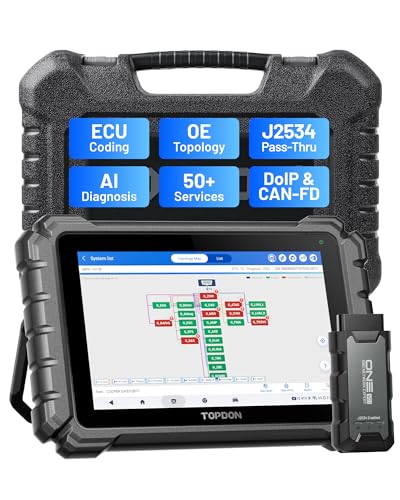
- Dual WiFi & 10.1" Touchscreen: Provides a stable, high-speed wireless link 3x faster than bluetooth, and a responsive, professional interface. Topdon ONE obd2 scanner diagnostic tool ensures smooth, non-lagging diagnostic scan, boosting mechanic efficiency
- J2534 Pass-Thru Support: The included ONE VCI supports the J2534 standard, allowing it to function as a pass-thru device when paired with OEM diagnostic software.Through TOPDON’s RLink platform, technicians can perform dealer-level coding, expanding in-house capabilities without investing in multiple factory automotive scan tools
- OE Topology Mapping: Visualize the vehicle’s ECU network exactly as it’s built.Zoom, pan, and highlight specific modules to pinpoint component issues with precision.Topology mapping displays real-time communication between modules
- 50+ Service Functions: Covers high-demand services like ADAS calibration, DPF regen, TPMS reset, ABS bleed, and throttle adaptation.Expands your service menu, allows you to charge premium rates, and turns away zero jobs due to lack of tooling. Vehicle-specific functionality may vary
- Advaned ECU Coding: 10 of the most serviced brands in North America, including full ECU coding and flash hidden support for BMW, VW, Au-di, Benz, Porsche, Toyota, Ni ssan and more. Enables module replacement, feature customization, and personal settings with automatic backup or restore.Lets your shop safely offer high-margin customization services, attracting more customers and boosting profit

- [J2534 Pass-Thru Programmer] - TOPDON RLink J2534 is engineered for professional technicians, delivering OEM diagnostic and reprogramming capabilities. It supports all J2534 protocols, CAN-FD, DoIP, D-PDU. Compatible with 17 vehicle brands—such as Chrysler, Ford, GM, KIA, Hyundai, Nissan, Toyota, Honda, Subaru, Mitsubishi, MAZDA, Land Rover/Jaguar, Volvo, Volkswagen/Audi, Mercedes-Benz, and BMW. RLink J2534 can help reduce the cost of purchasing equipment from different brands.
- [All-in-One OEM Reprogramming and Diagnostics] - When seamlessly integrated with OEM diagnostic software, this dongle enables you to perform a wide range of functions, including ECU programming and coding, DTC reading and clearing, active tests, component matching, adaptations, rewriting, guided troubleshooting, and more. This all-in-one tool eliminates the need for multiple OEM devices, significantly boosting work efficiency.
- [Tested, Trusted, and Proven for Accuracy] - TOPDON RLink J2534 is renowned for its reliability, having successfully completed over 10,000 real-vehicle tests. The wealth of data and hands-on experience behind it ensures consistent performance and accurate results. You can trust this tool to deliver optimal performance.
- [One-Click Installation, Continuous Updates] - The exclusive TOPDON RLink platform streamlines installation with a one-click driver setup, allowing you to quickly access OEM software for diagnostic and reprogramming tasks. With lifetime free updates, your RLink J2534 stays current without any additional cost, ensuring reliable performance for the long term. *We don't provide extra OE software.
- [Works with Windows Compatibility and OEM Software Subscription] - The RLink J2534 supports three CAN channels - including CAN FD and CAN-CC, providing advantages in the process of rapid troubleshooting. Compatible with Windows 7, 8 and 10 (64-bit) and higher versions of the system. For full functionality, an active OEM software subscription is required for each supported vehicle brand. Please note that the dongle does not include OEM software, which must be purchased separately to access brand-specific diagnostic and reprogramming features.
- 💯【Conta.ct us for Support Directly】For any issues experienced after purchase, please reach out to: 📞autelsupply@ outlook. com🛣️. Our team will provide perfect solution for you. For tech support or [explore additional accessory], please cont.act our team: 📞autelsupply@ outlook. com🛣️.
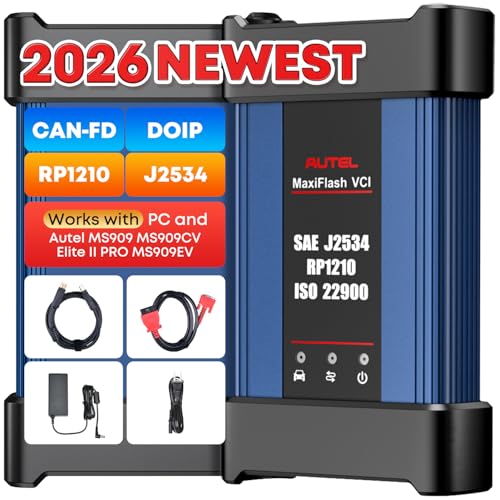
- 🌎【Autel J2534 Pass-Thru Progra.mmer】As an OEM Pass-Thru Progra.mmer Vehicle interface for multiple makes, Autel MaxiFlash J2534 support all J2534 protocols, D-PDU, CAN-FD and DoIP protocols. 2026 newer Autel MaxiFlash J2534 VCI can works with P-C and download OEM vehicle software, seamlessly conduct OE-level diagnostic-progra.mming-c0ding. Also, Work with Elite II Pro/ Ultra Lite/ MS909/ MS909CV/ MS909EV to directly pro.gram on Merce.des-Be.nz & BM.W. Autel J2534 Progr.ammer is a multi-functional device and supports 10+ major brands, including for Hond.a, G.M, LandRo.ver, BM.W, Chrysl.er, For.d, Hyun.dai, Ki.a, Merc.edes B.enz, Toyot.a, Volksw.agen etc.
- 🌎【Enhanced Protocol: J2534/D-PDU/RP1210/CAN FD/DoIP】Autel MaxiFlash JVCI is a blueto.oth communicate device, it supports latest CAN FD DoIP CAN protocols, compliant with automotive D-PDU/ J2534/ RP1210 standards. It can perform standard PassThru J2534 functions: compatible with Toyota Techstream, Volvo VIDA, Honda HDS, Jaguar Land Rover IDS and BM.W 3G for OEM diagnostics. CAN FD protocol is mainly for GM 2019+, DoIP protocol is mainly for Volvo 2018+, for L-and Rover/for Jaguar 2017+, for BM.W F chassis and G chassis.
- 🌎【Compatible with P-C/ WIND.OWS 】The Autel J2534 VCI can be connected to a compu.ter via a data cable; once the corresponding OEM software is installed, it enables do advanced progr.amming and c0ding on your vehicles. Easy Steps: 1) Connect to P-C via a USB cable 2) download OEM vehicle software 3) Start Diagnose. Take For.d for example, you can download OEM software on mot.orcraft.erservi.ce website, such as: For.d Diagnostic Software downloads, As B.uilt Data, Updated Cali.bration information, then use different software do relevant features.
- 🌎【Work with Autel Elite II Pro/ Ultra Lite/ MS909/ MS909CV/ MS909EV】This 2026 latest Autel J2534 Pass-Thru VCI is 100% compatible with Autel Elite II Pro Ultra Lite MS909 MS909CV MS909EV to perform advanced functions from diagnose to progra.mming.

- ALL OF THE J2534 PROTOCOLS - This single unit has all of the protocols you need for your OEM J2534 reprogramming and diagnostics including the latest in DoIP and CanFD
- J2534 TECHNICAL SUPPORT - FREE for the life of the tool. Staffed by technicians who understand vehicle repair and J2534 Pass‑thru
- TOOLBOX WITH OEM APPLICATION DESCRIPTIONS - educational video tutorials and real-time news – Giving you the confidence and up-to-date knowledge to get the job done
- J2534 v05.00 API - The newest version of J2534 to give you the latest in pass-thru technology
- FUTURE PROOF WITH 4 CAN CHANNELS - Going beyond the 3 required by select Chrysler/FCA models, CarDAQ-Plus 3 also provides a 4th to meet the needs of future OEM applications
SEOCONTENT-START
View as web page URGENT SAFETY RECALL NOTICE Your is under recall for Rear View Camera. To schedule your recall repair contact your dealership or the FCA US Recall Team at 1-800-853-1403.. Recall notice issued to: Vehicle information: VIN Recall information: Z86/NHTSA: 22V-638 Visit recalls.mopar.com for more information or call the FCA US Recall Team at 1-800-853-1403. Details of the Recall The rearview camera on your vehicle may experience persistent radio resets which may result in the rearview camera image not displaying during certain backing events. The vehicle operator will notice that the rearview image is not displayed if attempting to reference the image while backing. If this warning is not heeded, backing without verifying it is safe to do so could lead to an increased risk of injury to people outside the vehicle. FCA US will repair your vehicle free of charge (parts and labor). To do this, your dealer will update the radio software. The estimated repair time is 30 minutes. In addition, your dealer will require your vehicle for proper check-in, preparation, and check-out during your visit, which may require more time. Your time is important to us, so we recommend that you schedule a service appointment to minimize your inconvenience. Please bring this letter with you to your dealership. How do I schedule my FREE repair? ♦ Simply contact your Chrysler, Jeep®, Dodge or RAM dealer right away to schedule a service appointment. We apologize for any inconvenience, but are sincerely concerned about your safety. Thank you for your attention to this important matter. Customer Assistance/Field Operations FCA US LLC Team 1-800-853-1403. recalls.mopar.com
**************************************************************************************************************
Schedule your FREE repair today! URGENT SAFETY RECALL REAR VIEW CAMERA — Z86/22V-638 [MY Make Model] AA111111 Dear CUSTOMER NAME: Please bring your vehicle and this card to your scheduled appointment. We apologize for any inconvenience and do appreciate your attention to this urgent matter. Safety recall campaign Z86/22V-638 is open on your [MY Make Model]. ATENCIÓN! La unidad descrita en esta carta tiene un llamado a revisión pendiente por realizer. Para protegerlo a usted y a su familia, es urgente que se comunique con el grupo FCA US al teléfono 1-800-853-1403 con el fin de programar una cita y se reparada su unidad sin costo para usted. 0000286/#105327/Z86-FSP Call 1-800-853-1403 Visit recalls.mopar.com to locate your closest dealer Download the Mopar Owner’s Companion App at either the App or Google Play Stores LOGO VEHICLE PICTURE
**************************************************************************************************************
© Copyright 2022, FCA US LLC, All Rights Reserved (djt) October 2022 Dealer Service Instructions for: Safety Recall Z86 / NHTSA 22V-638 Rear View Camera Effective immediately all repairs on involved vehicles are to be performed according to this recall. Service Bulletin (TSB) 08-015-21 and 08-088-21- REV.A is no longer applicable for the vehicles involved in this recall. Those vehicles that have already had this repair performed, as determined by our warranty records, have been excluded from this recall. 2020-2021 (JL) Jeep Wrangler 2020-2021 (DT) Ram 1500 Pickup 2021 (JT) Jeep Gladiator NOTE: This recall applies only to the above vehicles equipped with an EcoDiesel engine and radio sales codes UAM, UCM, UAG or UCG. NOTE: Some vehicles above may have been identified as not involved in this recall and therefore have been excluded from this recall. Remedy Available IMPORTANT: Some of the involved vehicles may be in dealer new vehicle inventory. Federal law requires you to complete this recall service on these vehicles before retail delivery. Dealers should also consider this requirement to apply to used vehicle inventory and should perform this recall on vehicles in for service. Involved vehicles can be determined by using the VIP inquiry process. Safety Recall Z86 – Rear View Camera Page 2 The rear view camera on about 7,890 of the above vehicles with EcoDiesel engine and certain radios may experience persistent radio resets which may result in the rearview camera image not displaying during certain backing events. The vehicle operator will notice that the rearview image is not displayed if attempting to reference the image while backing. If this warning is not heeded, backing without verifying it is safe to do so could lead to an increased risk of injury to people outside the vehicle. The condition above fails to conform to the requirements of Federal Motor Vehicle Safety Standard (FMVSS) No. 571.111 S6.2.6 which requires that “The rear visibility system default to the rearview image being visible, and meet the requirements of FMVSS 571.111 S6.2.1 (field of view) and S6.2.2 (image size) at the beginning of each backing event, regardless of any modifications to the field of view that the driver had previously selected.” Update the radio software to 1848.34 for model year 2020 vehicles, or 2036.06 for 2021 model year vehicles. No parts are required to perform this service procedure. No parts return required for this campaign. Subject Repair Parts Information Parts Return Safety Recall Z86 – Rear View Camera Page 3 The following special tools are required to perform this repair: ➢ NPN USB Flash Drive (8 GB or larger) NOTE: An 8 GB USB flash drive is required for this update. It is also recommended to use a quality, name brand (Kingston®) flash drive over a generic USB flash drive. Special Tools Safety Recall Z86 – Rear View Camera Page 4 Is this a 2020 Model Year vehicle w/ Radio Software Level 18.xx.xx? ➢ YES >>> Proceed to Service Procedure A. Software Download ➢ NO >>> Proceed to Service Procedure B. Software Download A. Software Download 1. Has an 8 GB USB flash drive been created? ➢ YES >>> Proceed to Step 11. ➢ NO >>> Proceed to Step 2 2. Perform the following steps to format the USB flash drive (Figure 1): a) Select “FAT32” format. b) Select “Default allocation size” under Allocation Unit Size. c) Select “Quick Format” under Format Options. d) Click “Start”. Service Procedure Figure 1 – Formatting the USB Flash Drive Safety Recall Z86 – Rear View Camera Page 5 3. Go to DealerCONNECT>Service>Uconnect Command Center>Uconnect>More Information>Dealer software downloads to download the files. 4. If a security message appears “Do you want to view only the web page content that was delivered securely?” (Figure 2). Press “No” to continue. NOTE: If the software cannot be downloaded, make sure you have proper security access. If not, have the Service Manager or Shop Foreman download the software update. 5. Use a blank USB flash drive with at least 8 GB of space. Follow the on-screen instructions to download the software files. Service Procedure [Continued] Figure 2 – Pop-Up Security Message Safety Recall Z86 – Rear View Camera Page 6 6. Download the software update file to your local PC’s desktop. Make sure to select the “MAC” radial button for all downloads (Figure 3). 7. Be sure to download the file to your PC’s desktop and open it (Figure 4). NOTE: The USB should only contain a folder labeled “18000000” on it after files are extracted to it. Service Procedure [Continued] Figure 3 – MAC Download Steps Figure 4 – Extracted File Safety Recall Z86 – Rear View Camera Page 7 8. Extract the downloaded file to the USB flash drive (Figure 5). NOTE: It may take a few minutes for an accurate extraction time to be displayed. 9. Once the file is extracted to the USB flash drive, it is recommended to label the USB flash drive with the bulletin number and proper radio Sales Code. NOTE: Eject the USB flash drive properly from your PC. Failure to eject the USB flash drive properly may result in an improper file byte size and cause the update to not fully download. Service Procedure [Continued] Figure 5 – Extract File to USB Safety Recall Z86 – Rear View Camera Page 8 10. Perform the following steps to properly eject the USB flash drive (Figure 6): a) Right click on the location of the USB flash drive. b) Click “Eject” to avoid data corruption. c) Remove the USB flash drive from the PC. NOTE: Verify the vehicle fuel level is at least 1/8 of a tank. If not, add fuel as required. If necessary, take vehicle out of ship mode and enter customer mode. Service Procedure [Continued] Figure 6 – Ejecting the USB Flash Drive Safety Recall Z86 – Rear View Camera Page 9 11. Shut off all remaining accessories for the duration of the update (flashers, climate controls, etc.). 12. Wait for the radio to fully power on and initialize. Ensure all splash, partner logo, animation, disclaimer and main screens have loaded, before starting the software update. CAUTION! Ensure no other device is plugged into any of the USB ports while performing this update. If other devices are connected to the USB ports during the update, it may cause failure of files to be loaded. Failure to do so may cause the radio to need replacement. NOTE: The engine must be running and radio powered on during the update. Failure to do so may result in the radio not being updated and create connectivity issues. DO NOT remove the USB flash drive during the update. 13. Start the vehicle and insert the USB flash drive into the USB port. 14. Wait for the software update pop-up window to appear on the screen. NOTE: There can be more than one older current software level depending on vehicle/radio manufacture time of build. 15. Verify the screen states the following: “Current: 18XX.XX Update to: **1848.34** Approx time: 30 minutes”. Is the radio current software level at or higher than **1848.34?* ➢ YES >>> The radio software is already up to date. Press “Cancel” to exit. ➢ NO >>> The radio software needs to be updated. Proceed to Step 16. NOTE: During the first 30 seconds of the software update, the current software is erased. The radio will then re-boot and re-start to begin the update of the software. Many software partitions are displayed on the screen during the update process. Service Procedure [Continued] Safety Recall Z86 – Rear View Camera Page 10 16. Press “Yes” to start the update. The software update takes approximately 30 minutes to complete (Figure 7). 17. Did the update fail after insertion of the USB flash drive into the USB port? ➢ YES >>> Re-start update procedure at Step 11. ➢ NO >>> Proceed to Step 18. Service Procedure [Continued] Figure 7 – Update Ready to Install Safety Recall Z86 – Rear View Camera Page 11 NOTE: Do not remove the USB flash drive before you are instructed to (Figure 8). 18. Wait for the “Radio was successfully updated” screen (Figure 9). Service Procedure [Continued] Figure 8 – Do Not Remove Flash Drive Figure 9 – Update Successful Screen Safety Recall Z86 – Rear View Camera Page 12 19. Wait until radio resets and audio is heard before removing the USB flash drive. 20. Verify the software version is **1848.34** by re-inserting the USB flash drive into the USB port. Did the Software Update pop-up again, displaying the following: “Current: **1848.34 Update to: 1848.34** Update not available to same software version”? ➢ YES >>> The software update is complete, press “Cancel” then remove the USB flash drive from the USB port. ➢ NO >>> Verify the file sizes on the USB flash drive to ensure they are correct and then attempt the update again. Re-start at Step 11. 21. Return the vehicle to the customer. Service Procedure [Continued] Safety Recall Z86 – Rear View Camera Page 13 B. Software Download 1. Has an 8 GB USB flash drive been created? ➢ YES >>> Proceed to Step 11. ➢ NO >>> Proceed to Step 2 2. Perform the following steps to format the USB flash drive (Figure 1): e) Select “FAT32” format. f) Select “Default allocation size” under Allocation Unit Size. g) Select “Quick Format” under Format Options. h) Click “Start”. Service Procedure [Continued] Figure 1 – Formatting the USB Flash Drive Safety Recall Z86 – Rear View Camera Page 14 3. Go to DealerCONNECT>Service>Uconnect Command Center>Uconnect>More Information>Dealer software downloads to download the files. 4. If a security message appears “Do you want to view only the web page content that was delivered securely?” (Figure 2). Press “No” to continue. NOTE: If the software cannot be downloaded, make sure you have proper security access. If not, have the Service Manager or Shop Foreman download the software update. 5. Use a blank USB flash drive with at least 8 GB of space. Follow the on-screen instructions to download the software files. Service Procedure [Continued] Figure 2 – Pop-Up Security Message Safety Recall Z86 – Rear View Camera Page 15 6. Download the software update file to your local PC’s desktop. Make sure to select the “MAC” radial button for all downloads (Figure 3). 7. Be sure to download the file to your PC’s desktop and open it (Figure 4). NOTE: The USB should only contain a folder labeled “18000000” on it after files are extracted to it. Service Procedure [Continued] Figure 3 – MAC Download Steps Figure 4 – Extracted File Safety Recall Z86 – Rear View Camera Page 16 8. Extract the downloaded file to the USB flash drive (Figure 5). NOTE: It may take a few minutes for an accurate extraction time to be displayed. 9. Once the file is extracted to the USB flash drive, it is recommended to label the USB flash drive with the bulletin number and proper radio Sales Code. NOTE: Eject the USB flash drive properly from your PC. Failure to eject the USB flash drive properly may result in an improper file byte size and cause the update to not fully download. Service Procedure [Continued] Figure 5 – Extract File to USB Safety Recall Z86 – Rear View Camera Page 17 10. Perform the following steps to properly eject the USB flash drive (Figure 6): d) Right click on the location of the USB flash drive. e) Click “Eject” to avoid data corruption. f) Remove the USB flash drive from the PC. NOTE: Verify the vehicle fuel level is at least 1/8 of a tank. If not, add fuel as required. If necessary, take vehicle out of ship mode and enter customer mode. Service Procedure [Continued] Figure 6 – Ejecting the USB Flash Drive Safety Recall Z86 – Rear View Camera Page 18 11. Shut off all remaining accessories for the duration of the update (flashers, climate controls, etc.). 12. Wait for the radio to fully power on and initialize. Ensure all splash, partner logo, animation, disclaimer and main screens have loaded, before starting the software update. CAUTION! Ensure no other device is plugged into any of the USB ports while performing this update. If other devices are connected to the USB ports during the update, it may cause failure of files to be loaded. Failure to do so may cause the radio to need replacement. NOTE: The engine must be running and radio powered on during the update. Failure to do so may result in the radio not being updated and create connectivity issues. DO NOT remove the USB flash drive during the update. 13. Start the vehicle and insert the USB flash drive into the USB port. 14. Wait for the software update pop-up window to appear on the screen. NOTE: There can be more than one older current software level depending on vehicle/radio manufacture time of build. 15. Verify the screen states the following: “Current: 18XX.XX Update to: **2036.06** Approx time: 30 minutes”. Is the radio current software level at or higher than **2036.06?* ➢ YES >>> The radio software is already up to date. Press “Cancel” to exit. ➢ NO >>> The radio software needs to be updated. Proceed to Step 16. NOTE: During the first 30 seconds of the software update, the current software is erased. The radio will then re-boot and re-start to begin the update of the software. Many software partitions are displayed on the screen during the update process. Service Procedure [Continued] Safety Recall Z86 – Rear View Camera Page 19 16. Press “Yes” to start the update. The software update takes approximately 30 minutes to complete (Figure 7). 17. Did the update fail after insertion of the USB flash drive into the USB port? ➢ YES >>> Re-start update procedure at Step 11. ➢ NO >>> Proceed to Step 18. Service Procedure [Continued] Figure 7 – Update Ready to Install Safety Recall Z86 – Rear View Camera Page 20 NOTE: Do not remove the USB flash drive before you are instructed to (Figure 8). 18. Wait for the “Radio was successfully updated” screen (Figure 9). Service Procedure [Continued] Figure 8 – Do Not Remove Flash Drive Figure 9 – Update Successful Screen Safety Recall Z86 – Rear View Camera Page 21 19. Wait until radio resets and audio is heard before removing the USB flash drive. 20. Verify the software version is **2036.06** by re-inserting the USB flash drive into the USB port. Did the Software Update pop-up again, displaying the following: “Current: **2036.06 Update to: 2036.06** Update not available to same software version”? ➢ YES >>> The software update is complete, press “Cancel” then remove the USB flash drive from the USB port. ➢ NO >>> Verify the file sizes on the USB flash drive to ensure they are correct and then attempt the update again. Re-start at Step 11. 21. Return the vehicle to the customer. Service Procedure [Continued] Safety Recall Z86 – Rear View Camera Page 22 Claims for vehicles that have been serviced must be submitted on the DealerCONNECT Claim Entry Screen located on the Service tab. Claims paid will be used by FCA to record recall service completions and provide dealer payments. Use one of the following labor operation numbers and time allowances: Labor Operation Time Number Allowance Radio, Check Software Level 18-Z8-61-81 0.2 hours Radio, Check Software Level and Perform Software Update 18-Z8-61-82 0.5 hours Floor Plan Reimbursement 95-95-95-97 Calculate See Below Related Operations Radio, Software – Create USB Jump Drive From Uconnect Website (One Time Only) – 1848.34 Software Version 18-Z8-61-50 0.3 hours Radio, Software – Create USB Jump Drive From Uconnect Website (One Time Only) – 2036.06 Software Version 18-Z8-61-51 0.5 hours Completion Reporting and Reimbursement Safety Recall Z86 – Rear View Camera Page 23 Floor Plan Reimbursement represents the vehicle’s average daily allowance (see table below) multiplied by the number of days the vehicle was in dealer inventory and not available for sale. This reimbursement is limited to the number of days from the date of the stop sale to the date that the remedy was made available. Note: If the vehicle was received by your dealership (KZX date) AFTER the stop sale date, you will use the KZX date instead of the stop sale date. For this Recall, the stop sale was initiated on 09/01/2022 and the remedy was made available on 010/04/2022, therefore, the number of days cannot exceed 26 days. Vehicle Average Daily Allowance 2020-2021 Jeep Wrangler 2020-2021 Ram 1500 Pickup 2021 Jeep Gladiator NOTE: See the Warranty Administration Manual, Recall Claim Processing Section, for complete recall claim processing instructions. To view this notification on DealerCONNECT, select “Global Recall System” on the Service tab, then click on the description of this notification. All involved vehicle owners known to FCA are being notified of the service requirement by first class mail. They are requested to schedule appointments for this service with their dealers. A generic copy of the owner letter is attached. Completion Reporting and Reimbursement [Continued] Dealer Notification Owner Notification and Service Scheduling Safety Recall Z86 – Rear View Camera Page 24 All involved vehicles have been entered into the DealerCONNECT Global Recall System (GRS) and Vehicle Information Plus (VIP) for dealer inquiry as needed. GRS provides involved dealers with an updated VIN list of their incomplete vehicles. The owner’s name, address and phone number are listed if known. Completed vehicles are removed from GRS within several days of repair claim submission. To use this system, click on the “Service” tab and then click on “Global Recall System.” Your dealer’s VIN list for each recall displayed can be sorted by: those vehicles that were unsold at recall launch, those with a phone number, city, zip code, or VIN sequence. Dealers must perform this repair on all unsold vehicles before retail delivery. Dealers should also use the VIN list to follow up with all owners to schedule appointments for this repair. Recall VIN lists may contain confidential, restricted owner name and address information that was obtained from the Department of Motor Vehicles of various states. Use of this information is permitted for this recall only and is strictly prohibited from all other use. If you have any questions or need assistance in completing this action, please contact your Service and Parts District Manager. Customer Services / Field Operations FCA US LLC Vehicle Lists, Global Recall System, VIP and Dealer Follow Up Additional Information This notice applies to your vehicle, Z86/NHTSA 22V-638 YOUR SCHEDULING OPTIONS 1. RECOMMENDED OPTION Call your authorized Chrysler / Dodge / Jeep® / RAM Dealership. 2. Call the FCA Recall Assistance Center at 1-800-853-1403. An agent can confirm part availability and help schedule an appointment 3. Visit recalls.mopar.com, scan the QR code below, or download the Mopar Owner’s Companion App. Get access to recall notifications, locate your nearest dealer, and more through this website or Mopar Owner’s Companion App. You will be asked to provide your Vehicle Identification Number (VIN) to protect and verify your identity. The last eight characters of your VIN are provided above. DEALERSHIP INSTRUCTIONS Please reference Safety Recall Z86. IMPORTANT SAFETY RECALL Rear View Camera Dear [Name], This notice is sent to you in accordance with the National Traffic and Motor Vehicle Safety Act. FCA US LLC has decided that certain [2020 through 2021 Model Year (JL) Jeep® Wrangler and (DT) Ram 1500 Pickups and 2021 (JT) Jeep® Gladiator] vehicles fail to conform to Federal Motor Vehicle Safety Standard (FMVSS) No. 571.111 S6.2.6 which requires that “The rear visibility system default to the rearview image being visible, and meet the requirements of FMVSS 571.111 S6.2.1 (field of view) and S6.2.2 (image size) at the beginning of each backing event, regardless of any modifications to the field of view that the driver had previously selected.”. It is extremely important to take steps now to repair your vehicle to ensure the safety of you and your passengers. WHY DOES MY VEHICLE NEED REPAIRS? The rear view camera on your vehicle [1] may experience persistent radio resets which may result in the rearview camera image not displaying during certain backing events. The vehicle operator will notice that the rearview image is not displayed if attempting to reference the image while backing. If this warning is not heeded, backing without verifying it is safe to do so could lead to an increased risk of injury to people outside the vehicle. HOW DO I RESOLVE THIS IMPORTANT SAFETY ISSUE? FCA US will repair your vehicle [2] free of charge (parts and labor). To do this, your dealer will update the radio software. The estimated repair time is 30 minutes. In addition, your dealer will require your vehicle for proper check-in, preparation, and check-out during your visit, which may require more time. Your time is important to us, so we recommend that you schedule a service appointment to minimize your inconvenience. Please bring this letter with you to your dealership. TO SCHEDULE YOUR FREE REPAIR, CALL YOUR CHRYSLER, DODGE, JEEP OR RAM DEALER TODAY WHAT IF I ALREADY PAID TO HAVE THIS REPAIR COMPLETED? If you have already experienced this specific condition and have paid to have it repaired, you may visit www.fcarecallreimbursement.com to submit your reimbursement request online. [3] Once we receive and verify the required documents, reimbursement will be sent to you within 60 days. If you have had previous repairs performed and/or already received reimbursement, you may still need to have the recall repair performed. We apologize for any inconvenience, but are sincerely concerned about your safety. Thank you for your attention to this important matter. Customer Assistance/Field Operations FCA US LLC [Model Year and Model] VIN XXXXXXXXXXXXXXXXX LOGO VEHICLE PICTURE QR Code [1] If you no longer own this vehicle, please help us update our records. Call the FCA Recall Assistance Center at 1-800-853-1403 to update your information. [2] If your dealer fails or is unable to remedy this defect without charge and within a reasonable time, you may submit a written complaint to the Administrator, National Highway Traffic Safety Administration, 1200 New Jersey Ave., S.E., Washington, DC 20590, or you can call the toll-free Vehicle Safety Hotline at 1-888-327-4236 (TTY 1-800-424- 9153), or go to safercar.gov. [3] You can also mail in your original receipts and proof of payment to the following address for reimbursement consideration: FCA Customer Assistance, P.O. Box 21-8004, Auburn Hills, MI 48321-8007, Attention: Recall Reimbursement. Note to lessors receiving this recall notice: Federal regulation requires that you forward this recall notice to the lessee within 10 days. Mr. Mrs. Customer 1234 Main Street Hometown, MI 48371
**************************************************************************************************************
This notice applies to your vehicle, Z86/NHTSA 22V-638 YOUR SCHEDULING OPTIONS 1. RECOMMENDED OPTION Call your authorized Chrysler / Dodge / Jeep® / RAM Dealership. 2. Call the FCA Recall Assistance Center at 1-800-853-1403. An agent can confirm part availability and help schedule an appointment 3. Visit recalls.mopar.com, scan the QR code below, or download the Mopar Owner’s Companion App. Get access to recall notifications, locate your nearest dealer, and more through this website or Mopar Owner’s Companion App. You will be asked to provide your Vehicle Identification Number (VIN) to protect and verify your identity. The last eight characters of your VIN are provided above. DEALERSHIP INSTRUCTIONS Please reference Safety Recall Z86. IMPORTANT SAFETY RECALL Rear View Camera Dear [Name], This notice is sent to you in accordance with the National Traffic and Motor Vehicle Safety Act. FCA US LLC has decided that certain [2020 through 2021 Model Year (JL) Jeep® Wrangler and (DT) Ram 1500 Pickups and 2021 (JT) Jeep® Gladiator] vehicles fail to conform to Federal Motor Vehicle Safety Standard (FMVSS) No. 571.111 S6.2.6 which requires that “The rear visibility system default to the rearview image being visible, and meet the requirements of FMVSS 571.111 S6.2.1 (field of view) and S6.2.2 (image size) at the beginning of each backing event, regardless of any modifications to the field of view that the driver had previously selected.”. It is extremely important to take steps now to repair your vehicle to ensure the safety of you and your passengers. WHY DOES MY VEHICLE NEED REPAIRS? The rear view camera on your vehicle [1] may experience persistent radio resets which may result in the rearview camera image not displaying during certain backing events. The vehicle operator will notice that the rearview image is not displayed if attempting to reference the image while backing. If this warning is not heeded, backing without verifying it is safe to do so could lead to an increased risk of injury to people outside the vehicle. HOW DO I RESOLVE THIS IMPORTANT SAFETY ISSUE? FCA US will repair your vehicle [2] free of charge (parts and labor). To do this, your dealer will update the radio software. The estimated repair time is 30 minutes. In addition, your dealer will require your vehicle for proper check-in, preparation, and check-out during your visit, which may require more time. Your time is important to us, so we recommend that you schedule a service appointment to minimize your inconvenience. Please bring this letter with you to your dealership. TO SCHEDULE YOUR FREE REPAIR, CALL YOUR CHRYSLER, DODGE, JEEP OR RAM DEALER TODAY WHAT IF I ALREADY PAID TO HAVE THIS REPAIR COMPLETED? If you have already experienced this specific condition and have paid to have it repaired, you may visit www.fcarecallreimbursement.com to submit your reimbursement request online. [3] Once we receive and verify the required documents, reimbursement will be sent to you within 60 days. If you have had previous repairs performed and/or already received reimbursement, you may still need to have the recall repair performed. We apologize for any inconvenience, but are sincerely concerned about your safety. Thank you for your attention to this important matter. Customer Assistance/Field Operations FCA US LLC [Model Year and Model] VIN XXXXXXXXXXXXXXXXX LOGO VEHICLE PICTURE QR Code [1] If you no longer own this vehicle, please help us update our records. Call the FCA Recall Assistance Center at 1-800-853-1403 to update your information. [2] If your dealer fails or is unable to remedy this defect without charge and within a reasonable time, you may submit a written complaint to the Administrator, National Highway Traffic Safety Administration, 1200 New Jersey Ave., S.E., Washington, DC 20590, or you can call the toll-free Vehicle Safety Hotline at 1-888-327-4236 (TTY 1-800-424- 9153), or go to safercar.gov. [3] You can also mail in your original receipts and proof of payment to the following address for reimbursement consideration: FCA Customer Assistance, P.O. Box 21-8004, Auburn Hills, MI 48321-8007, Attention: Recall Reimbursement. Note to lessors receiving this recall notice: Federal regulation requires that you forward this recall notice to the lessee within 10 days. Mr. Mrs. Customer 1234 Main Street Hometown, MI 48371
**************************************************************************************************************
08/26/2022 _____________________________________________________________________ New Safety Recall Advanced Communication – Z86 FCA US LLC (FCA US) has announced a safety recall on certain 2020 through 2021 Model Year (JL) Jeep® Wrangler and (DT) Ram 1500 Pickups and 2021 (JT) Jeep® Gladiator vehicles equipped with radio sales codes UAM, UCM, UAG or UCG. REASON FOR THIS SAFETY RECALL Some of the above vehicles equipped with EcoDiesel engines and certain radios may experience persistent radio resets which may result in the rearview camera image not displaying during certain backing events. The vehicle operator will notice that the rearview image is not displayed if attempting to reference the image while backing. If this warning is not heeded, backing without verifying it is safe to do so could lead to an increased risk of injury to people outside the vehicle. The condition described above does not comply with Federal Motor Vehicle Safety Standard (“FMVSS”) 571.111 S6.2.6 which requires that “The rear visibility system default to the rearview image being visible, and meet the requirements of FMVSS 571.111 S6.2.1 (field of view) and S6.2.2 (image size) at the beginning of each backing event, regardless of any modifications to the field of view that the driver had previously selected.” SERVICE ACTION FCA US will conduct a voluntary safety recall to update the radio software. The remedy for this condition is not currently available. Dealers will be notified of the launch of this safety recall by way of established communication methods. This recall is estimated to launch in 3rd Quarter of 2022. We ask that you please take the time to ensure that your personnel are aware of this communication and are prepared to execute a customer friendly process for inquiries regarding involved vehicles. Customer Services Field Operations FCA US LLC
**************************************************************************************************************
09/01/2022 _____________________________________________________________________ New Safety Recall Advanced Communication – Z86 FCA US LLC (FCA US) has announced a safety recall on certain 2020 through 2021 Model Year (JL) Jeep® Wrangler and (DT) Ram 1500 Pickups and 2021 (JT) Jeep® Gladiator vehicles equipped with radio sales codes UAM, UCM, UAG or UCG. VINs identified as being involved in this campaign are currently live and searchable. Stop sale is in effect for the above-identified vehicles. Vehicles impacted by a stop sale are eligible for reimbursement allowance through the Recall Floorplan Reimbursement Policy (RFPRP), which can be requested upon recall claim submission. REASON FOR THIS SAFETY RECALL Some of the above vehicles equipped with EcoDiesel engines and certain radios may experience persistent radio resets which may result in the rearview camera image not displaying during certain backing events. The vehicle operator will notice that the rearview image is not displayed if attempting to reference the image while backing. If this warning is not heeded, backing without verifying it is safe to do so could lead to an increased risk of injury to people outside the vehicle. The condition described above does not comply with Federal Motor Vehicle Safety Standard (“FMVSS”) 571.111 S6.2.6 which requires that “The rear visibility system default to the rearview image being visible, and meet the requirements of FMVSS 571.111 S6.2.1 (field of view) and S6.2.2 (image size) at the beginning of each backing event, regardless of any modifications to the field of view that the driver had previously selected.” SERVICE ACTION FCA US will conduct a voluntary safety recall to update the radio software. The remedy for this condition is not currently available. Dealers will be notified of the launch of this safety recall by way of established communication methods. This recall is estimated to launch in 3rd Quarter of 2022. IMPORTANT: Some of the involved vehicles may be in dealer new vehicle inventory. Federal law requires you to complete this recall service on these vehicles before retail delivery. Violation of this requirement by a dealer could result in a civil penalty of up to $21,000 per vehicle. Involved vehicles can be determined by using the VIP inquiry process. We ask that you please take the time to ensure that your personnel are aware of this communication and are prepared to execute a customer friendly process for inquiries regarding involved vehicles. Customer Services Field Operations FCA US LLC
**************************************************************************************************************
OMB Control No.: 2127-0004 Part 573 Safety Recall Report 22V-638 The information contained in this report was submitted pursuant to 49 CFR §573 Manufacturer Name : Chrysler (FCA US, LLC) Submission Date : AUG 25, 2022 NHTSA Recall No. : 22V-638 Manufacturer Recall No. : Z86 Manufacturer Information : Manufacturer Name : Chrysler (FCA US, LLC) Address : 800 Chrysler Drive CIMS 482-00-91 Auburn Hills MI 48326-2757 Company phone : 1-800-853-1403 Population : Number of potentially involved : 7,895 Estimated percentage with defect : 100 % Vehicle Information : Vehicle 1 : 2020-2021 Jeep Wrangler Vehicle Type : Body Style : SUV Power Train : NR Descriptive Information : Some 2020-2021 MY Jeep Wrangler vehicles equipped with EcoDiesel engines and certain radios may experience persistent radio resets which may result in the rearview camera image not displaying during certain backing events. The suspect period began on August 30, 2019, when the first suspect 2020 MY vehicle was produced, and ended on November 20, 2020, when the radio software was updated in production. Engineering change and vehicle production records were used to determine the suspect period. Similar vehicles not included in this recall were not equipped with an EcoDiesel engine, were not equipped with specific radios, or were built after the suspect period. The total affected vehicles for this model is 2,737. Production Dates : AUG 30, 2019 – NOV 20, 2020 VIN Range 1 : Begin : NR End : NR Not sequential Part 573 Safety Recall Report 22V-638 Page 2 The information contained in this report was submitted pursuant to 49 CFR §573 Vehicle 2 : 2020-2021 Ram 1500 Vehicle Type : Body Style : PICKUP TRUCK Power Train : NR Descriptive Information : Some 2020-2021 MY Ram 1500 vehicles equipped with EcoDiesel engines and certain radios may experience persistent radio resets which may result in the rearview camera image not displaying during certain backing events. The suspect period began on June 3, 2019, when the first suspect 2020 MY vehicle was produced, and ended on November 20, 2020, when the radio software was updated in production. Engineering change and vehicle production records were used to determine the suspect period. Similar vehicles not included in this recall were not equipped with an EcoDiesel engine, were not equipped with specific radios, or were built after the suspect period. The total affected vehicles for this model is 4,976. Production Dates : JUN 03, 2019 – NOV 20, 2020 VIN Range 1 : Begin : NR End : NR Not sequential Vehicle 3 : 2021-2021 Jeep Gladiator Vehicle Type : Body Style : PICKUP TRUCK Power Train : NR Descriptive Information : Some 2021 MY Jeep Gladiator vehicles equipped with EcoDiesel engines and certain radios may experience persistent radio resets which may result in the rearview camera image not displaying during certain backing events. The suspect period began on June 10, 2020, when the first suspect 2021 MY vehicle was produced, and ended on November 20, 2020, when the radio software was updated in production. Engineering change and vehicle production records were used to determine the suspect period. Similar vehicles not included in this recall were not equipped with an EcoDiesel engine, were not equipped with specific radios, or were built after the suspect period. The total affected vehicles for this model is 182. Production Dates : JUN 10, 2020 – NOV 20, 2020 VIN Range 1 : Begin : NR End : NR Not sequential Part 573 Safety Recall Report 22V-638 Page 3 The information contained in this report was submitted pursuant to 49 CFR §573 Description of Noncompliance : Description of the Noncompliance : Federal Motor Vehicle Safety Standard (“FMVSS”) 571.111 S6.2.6 requires that “The rear visibility system default to the rearview image being visible, and meet the requirements of FMVSS 571.111 S6.2.1 (field of view) and S6.2.2 (image size) at the beginning of each backing event, regardless of any modifications to the field of view that the driver had previously selected.” Suspect vehicles may not display the rearview image during a backing event under certain conditions. FMVSS 1 : 111 – Rear visibility FMVSS 2 : NR Description of the Safety Risk : The vehicle operator will notice that the rearview image is not displayed if attempting to reference the image while backing. If this warning is not heeded, backing without verifying it is safe to do so could lead to an increased risk of injury to people outside the vehicle. Description of the Cause : NR Identification of Any Warning that can Occur : The vehicle operator may observe the radio resetting prior to shifting to reverse, indicating the radio is not functioning as designed and may prevent the use of the backup camera. Involved Components : Component Name 1 : RADIO Component Description : MULTI MEDIA Component Part Number : 68428546AD, 68428547AD, 68474392AE, 68474393AE, 68428539AC Component Name 2 : RADIO Component Description : MULTI MEDIA Component Part Number : 68428540AC, 68467271AC, 68467272AC, 68467716AD, 68467717AD Supplier Identification : Component Manufacturer Name : APTIV Address : 13085 Hamilton Crossing Blvd Carmel Indiana 46032 Part 573 Safety Recall Report 22V-638 Page 4 The information contained in this report was submitted pursuant to 49 CFR §573 Country : United States Chronology : • On July 18, 2022, in discussions with NHTSA’s Office of Vehicle Safety Compliance (“OVSC”) regarding interpretation of compliance testing, FCA US LLC (“FCA US”) recognized a potential noncompliance with FMVSS No. 111. • On July 26, 2022, the FCA US Technical Safety and Regulatory Compliance (“TSRC”) organization reopened its investigation into the potential noncompliance with FMVSS No. 111. • On August 10, 2022, FCA US met with the NHTSA OVSC to update the agency that the investigation is going through its internal process. • On August 10, 2022, FCA US TSRC recognized that some vehicles equipped with EcoDiesel engines and certain radios may experience persistent radio resets which may result in the rearview camera image not displaying during certain backing events, potentially not in compliance with FMVSS No. 111. • On August 19, 2022, FCA US determined, through the Vehicle Regulations Committee, to conduct a voluntary safety recall of the affected vehicles. Description of Remedy : Description of Remedy Program : FCA US will conduct a voluntary safety recall on all affected vehicles to update the radio software. FCA US has a longstanding policy and practice of reimbursing owners who have incurred the cost of repairing a problem that subsequently becomes the subject of a field action. To ensure consistency, FCA US, as part of the owner letter, will request that customers send the original receipt and/or other adequate proof of payment to the company for confirmation of the expense. How Remedy Component Differs from Recalled Component : The remedy component will be a radio software update that prevents persistent radio resets. Identify How/When Recall Condition was Corrected in Production : NR Recall Schedule : Description of Recall Schedule : **08/25/2022: FCA US will notify dealers and begin notifying owners on or about 10/14/2022. Planned Dealer Notification Date : OCT 14, 2022 – OCT 14, 2022 Planned Owner Notification Date : OCT 14, 2022 – OCT 14, 2022 Part 573 Safety Recall Report 22V-638 Page 5 The information contained in this report was submitted pursuant to 49 CFR §573 * NR – Not Reported
SEOCONTENT-END
This product presentation was made with AAWP plugin.